Broadcast
The Broadcast feature in WappCloud enables businesses to send messages, updates, and promotional content to multiple contacts simultaneously. It is designed to ensure efficient communication while maintaining consistency and reach.
Create Broadcast
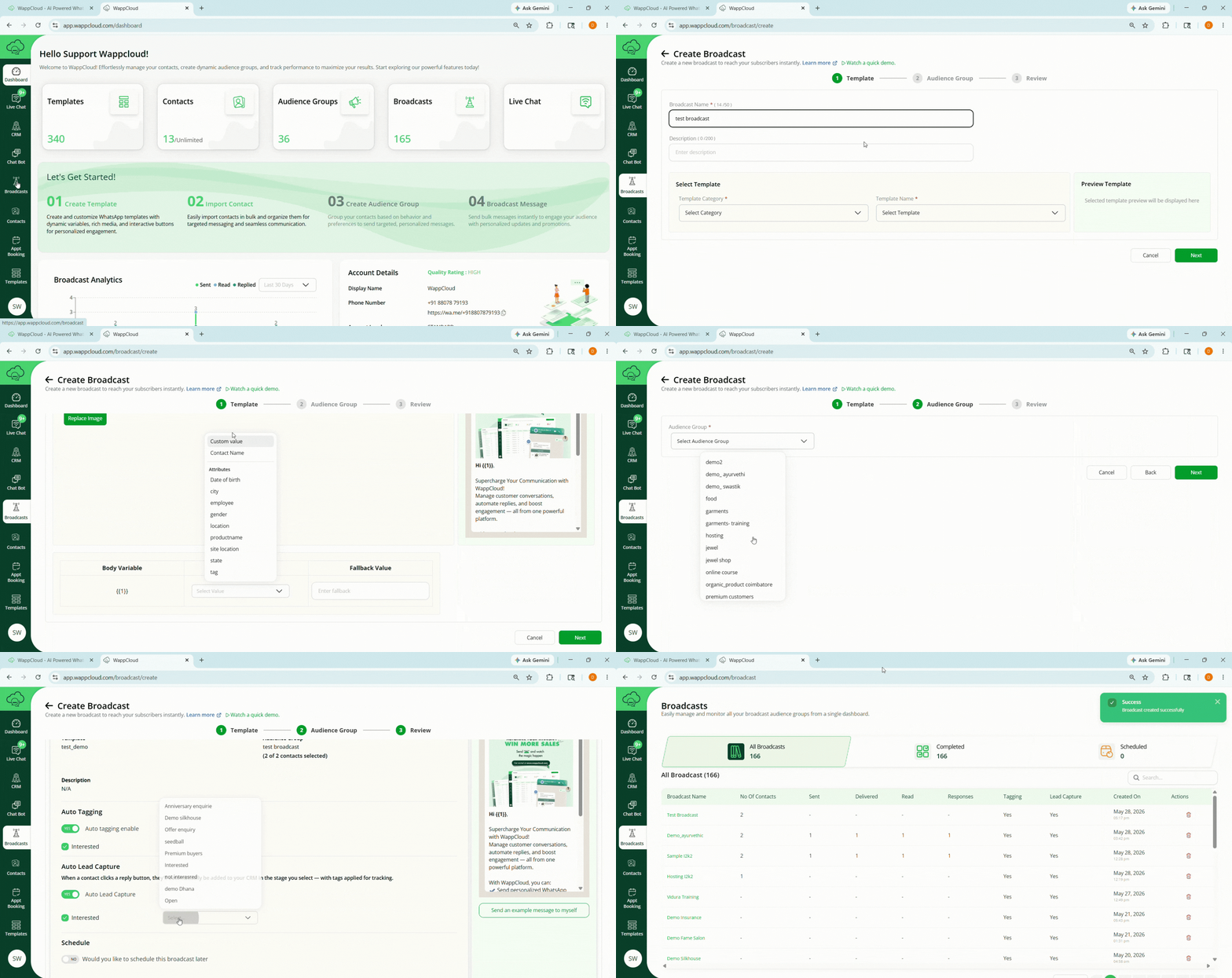
Steps to Create a Broadcast
Step 1: Navigate to the Broadcast Section
- Go to the Broadcast tab from the Dashboard.
- Click the green + Create Broadcast button at the top-right corner.
Step 2: Enter Broadcast Details
- Broadcast Name: Give your broadcast a clear name (e.g., “Happy New Year Sale”).
- Description: Briefly explain the purpose of your broadcast (e.g., “Announcing our New Year Sale”). It is optional.
- Template:
- Under Select Template, choose the template category (Marketing / Utility) from the drop-down list and select a pre-created template from the list.
- Preview the selected template on the right side of the screen.
- If the template contains variables (for example,
{{1}}), select the value from the drop-down and add a fallback value such as Customer. - If you select a Carousel template (a Marketing template with multiple swipeable cards), the preview shows each card with its image/video, text, and buttons. No extra setup is needed — the carousel is sent automatically in the same way as any other template.
- Click Next to continue.
Step 3: Select Audience Group
- From the Audience Group drop-down, select the group(s) to send the broadcast to. You can select more than one Audience Group at a time.
- Review the number of contacts in the selected audience group(s).
- Click Next to proceed to the review section.
Step 4: Review and Send
- Double-check the template details, audience group, and preview template.
- Keep Auto-tagging enabled to track responses to template buttons.
- Enable Auto lead capture — when a contact replies, they are automatically added to the selected CRM stage with tags applied for tracking.
- To schedule the broadcast, enable Schedule Later and select the date and time.
- Smart Retry: Enable the Smart Retry toggle to automatically create a follow-up broadcast for contacts who fail to receive this one, using the same template, at a time you choose. When enabled:
- Enter a Retry Broadcast Name for the follow-up broadcast.
- Pick the retry date, time, and timezone. A tip on screen recommends waiting 2–3 days before retrying, since retrying too soon may hit the same delivery issue again.
- Estimated Message Cost: Once a template and audience are selected, a card shows the approximate total cost and the number of contacts it’s based on (for example, “USD 12.50 for 250 contacts”). If some contacts couldn’t be priced, the card tells you how many were excluded from the estimate. This is only an approximate cost — the actual charge may vary slightly based on Meta’s final billing. If pricing isn’t available for your account or template category, this card won’t appear.
- Click Send an Example Message to Myself to test the broadcast. Enter your country code and phone number, then click Send Sample Message.
- Click Send and confirm by selecting Yes in the pop-up and click Send.
Broadcast Report
The Broadcast Report feature helps you track the performance of your broadcast campaigns and export detailed reports directly from WappCloud.
Step 1: Open Broadcast Report
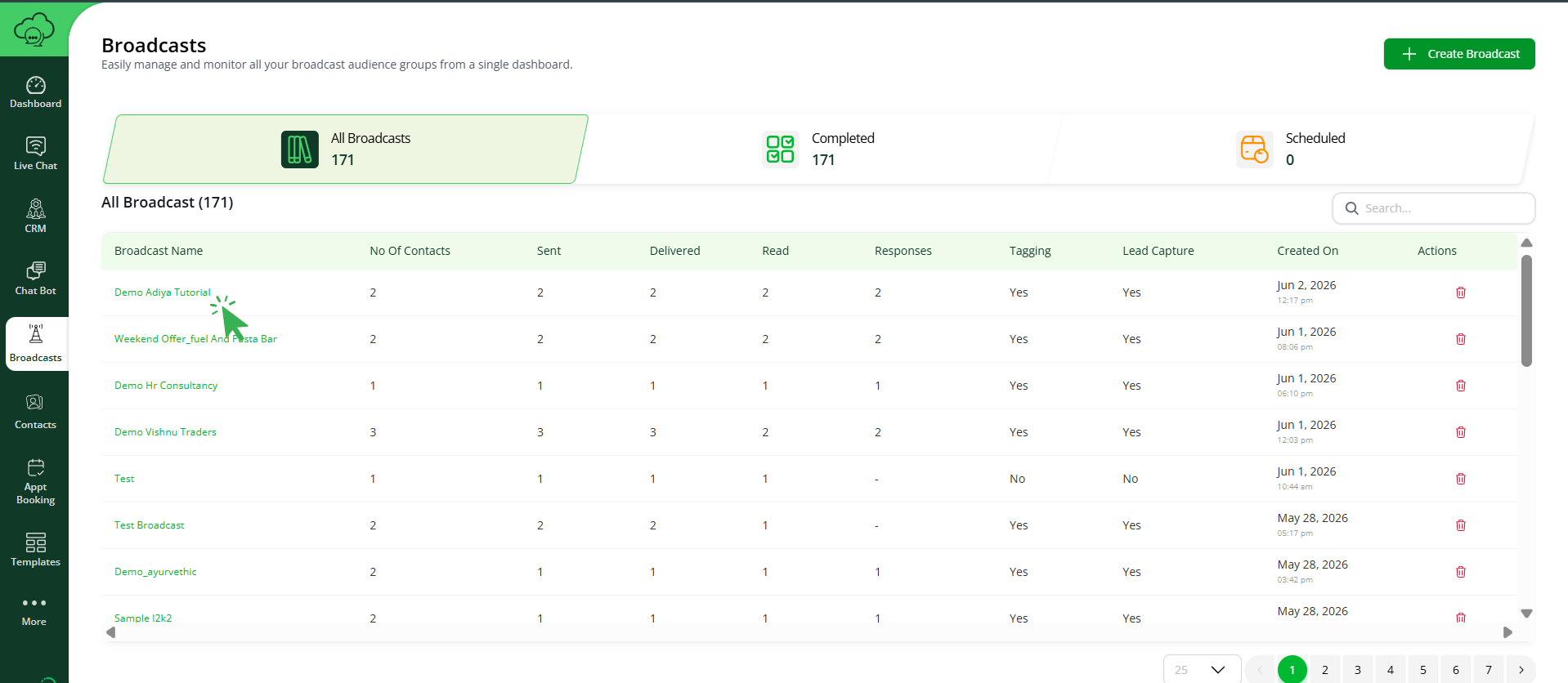
From the Broadcast List page, select the required broadcast name to view its report.
Step 2: View Broadcast Metrics
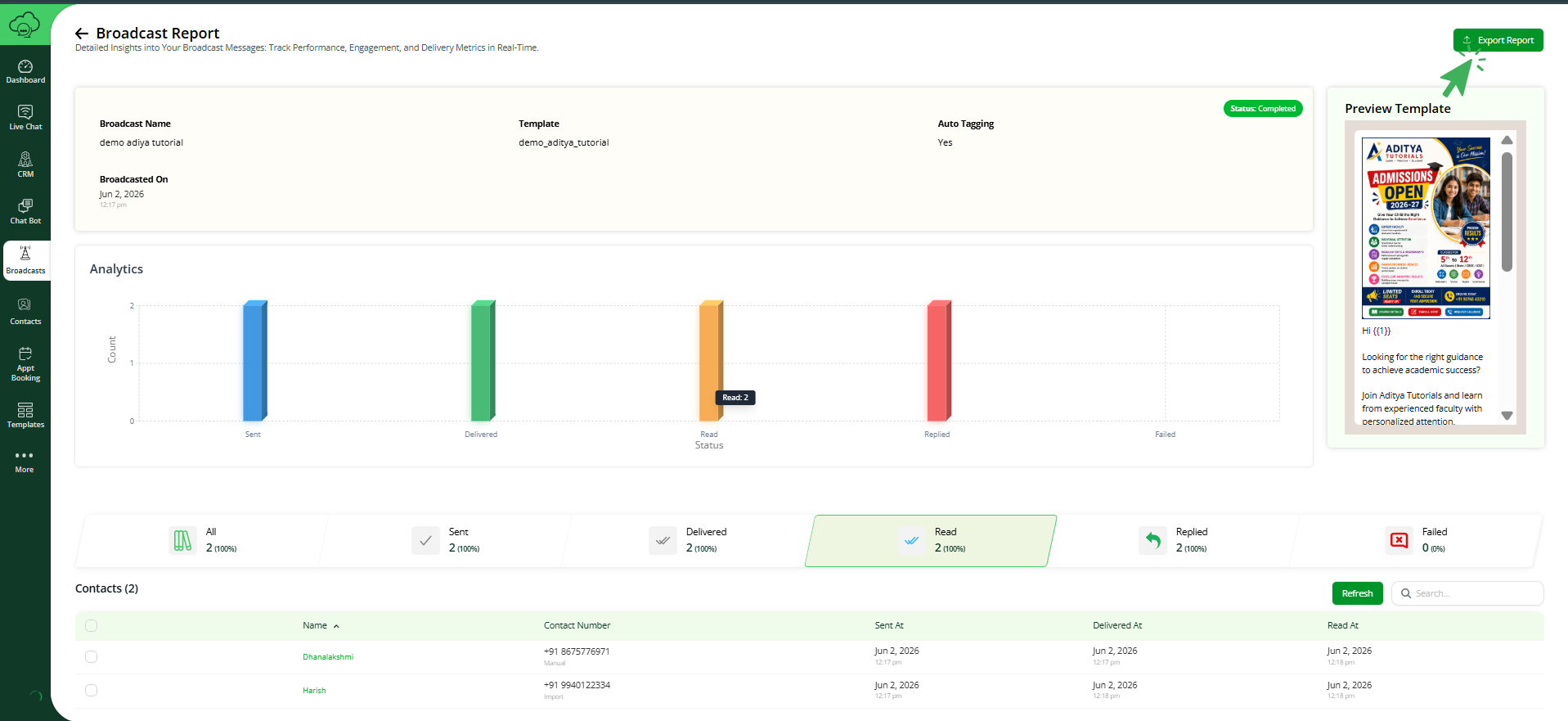
You can track the following metrics for each broadcast campaign:
- Sent Count
- Delivered Count
- Read Count
- Replied Count
- Failed Count
Step 3: Export Broadcast Report
Click on Export Report to download the broadcast performance report for further analysis and record keeping.