Lead Management
Create Stage
Stages help customize the sales pipeline according to your business process.
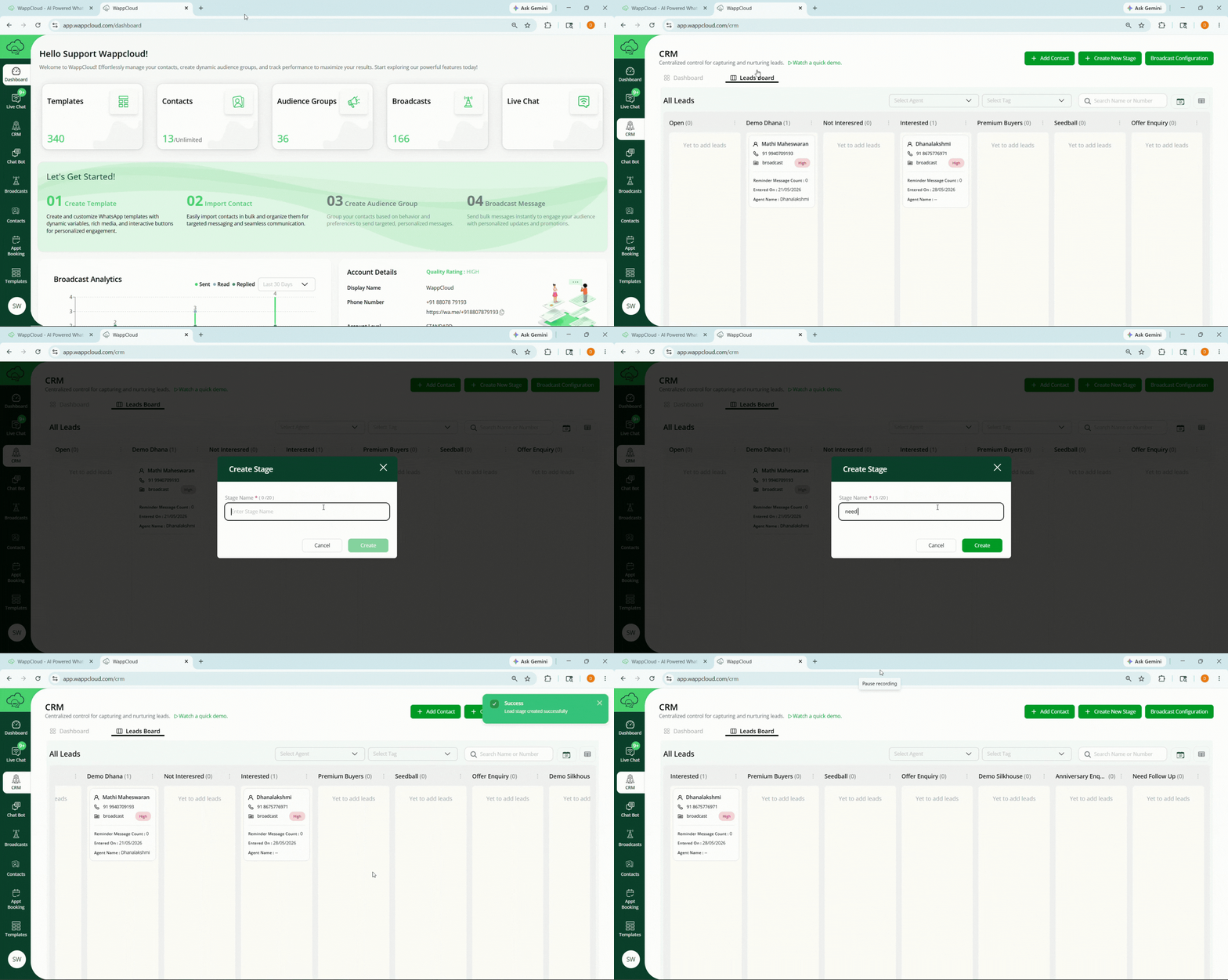
Steps to Create a Stage
- Click the Create Stage button.
- Enter the stage name.
- Click Create.
Example Stages
- New Lead
- Interested
- Follow-Up
- Proposal Sent
- Converted
- Closed
Adding Contacts in CRM
Contacts can be added to CRM either from existing contacts or by creating a new contact.
Adding Existing Contacts
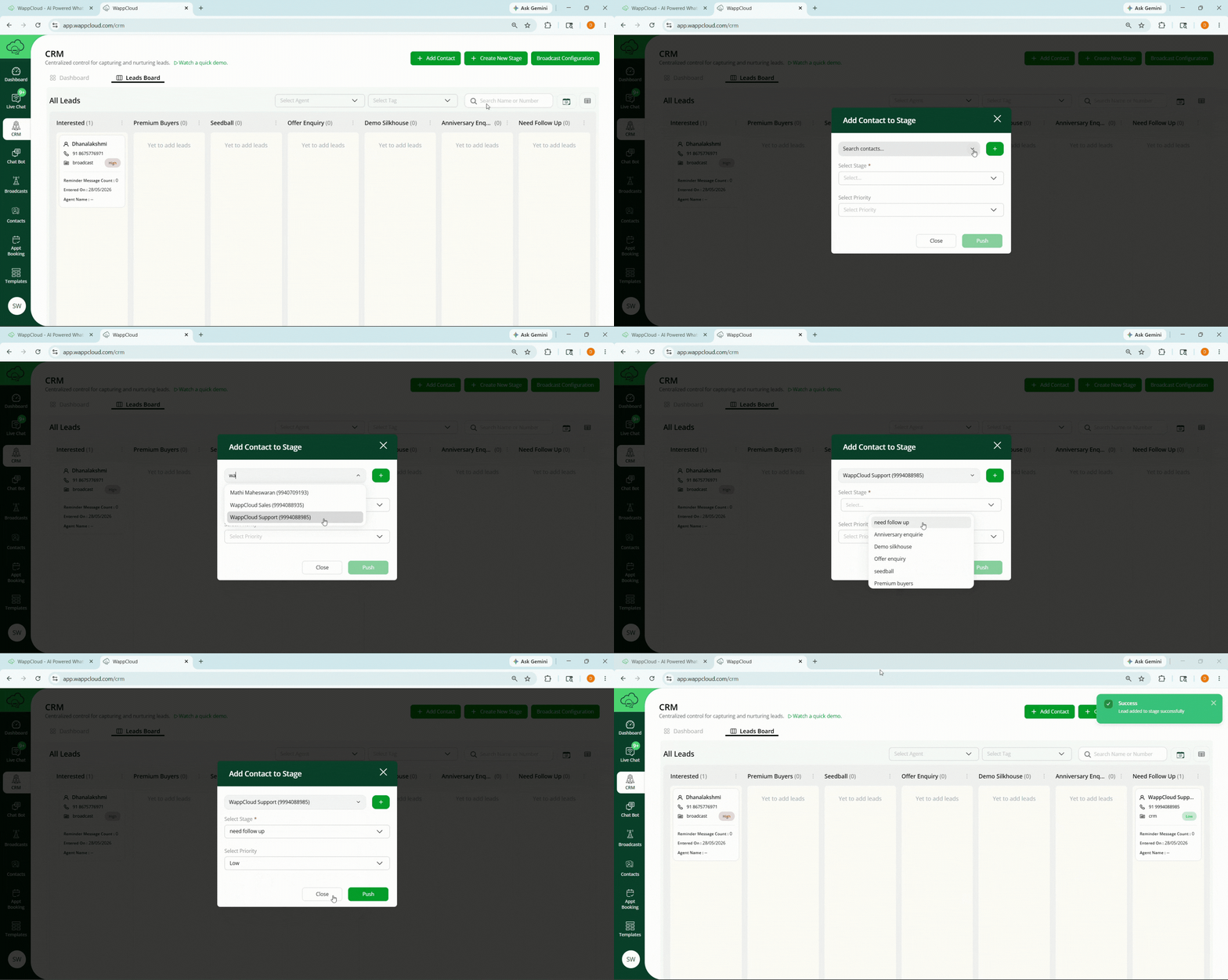
Steps
- Click the Add Contact button.
- Search for the contact using:
- Phone Number
- Contact Name
- Select the contact from the search results.
- Set:
- Initial Priority
- Initial Stage
- Click Push.
Adding New Contacts
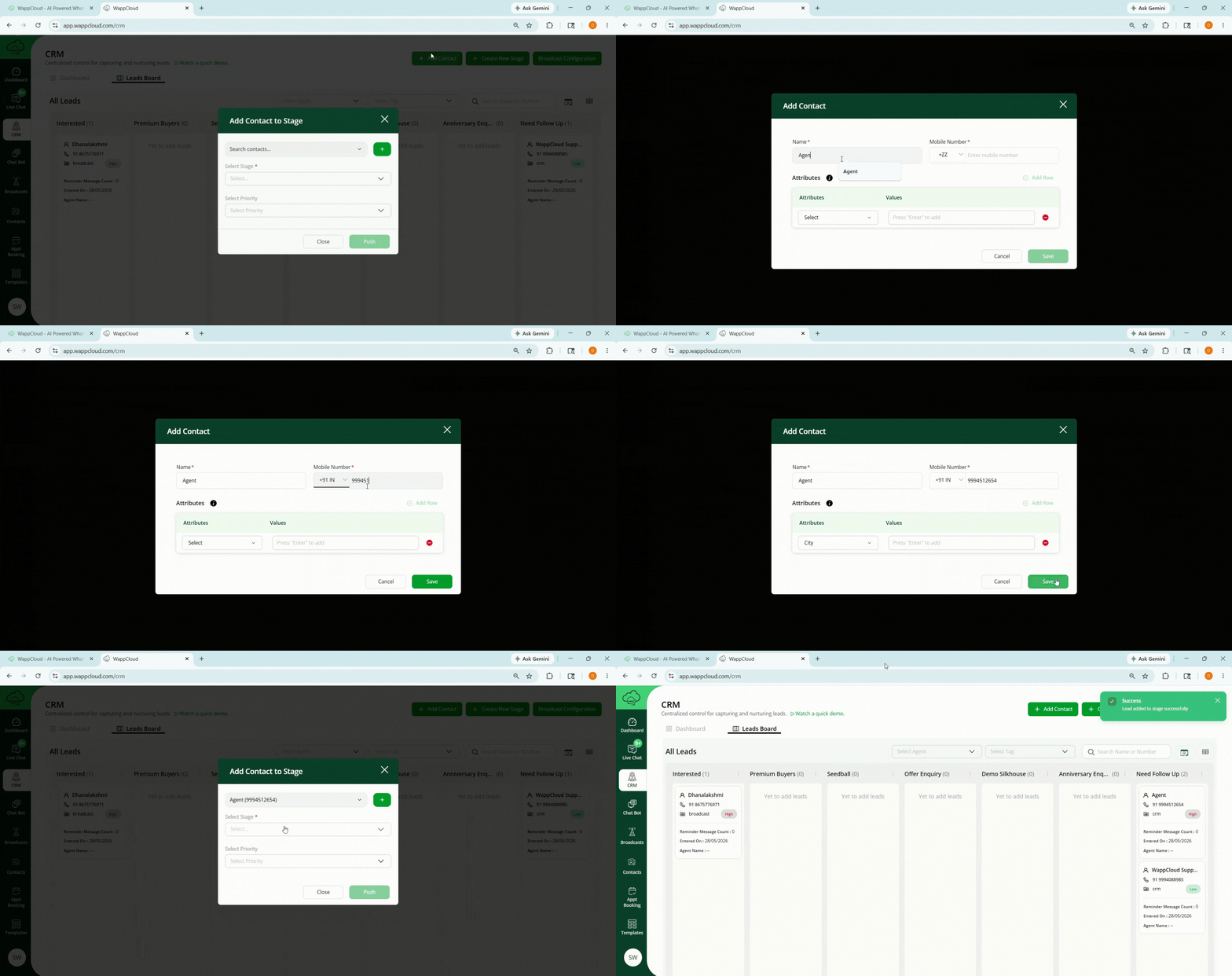
Steps
- Click the Add Contact button.
- Click the + icon near the search bar.
- Enter the following details in the popup window:
- Contact Name
- Phone Number
- Country Code
- Contact Attributes (Optional)
- Save the contact.
- Search and select the newly created contact.
- Set:
- Initial Priority
- Initial Stage
- Click Push.
Broadcast Configuration
Broadcast Configuration helps automate stage-based communication with CRM leads.
Purpose
Configure automatic message broadcasting for leads present in specific CRM stages.
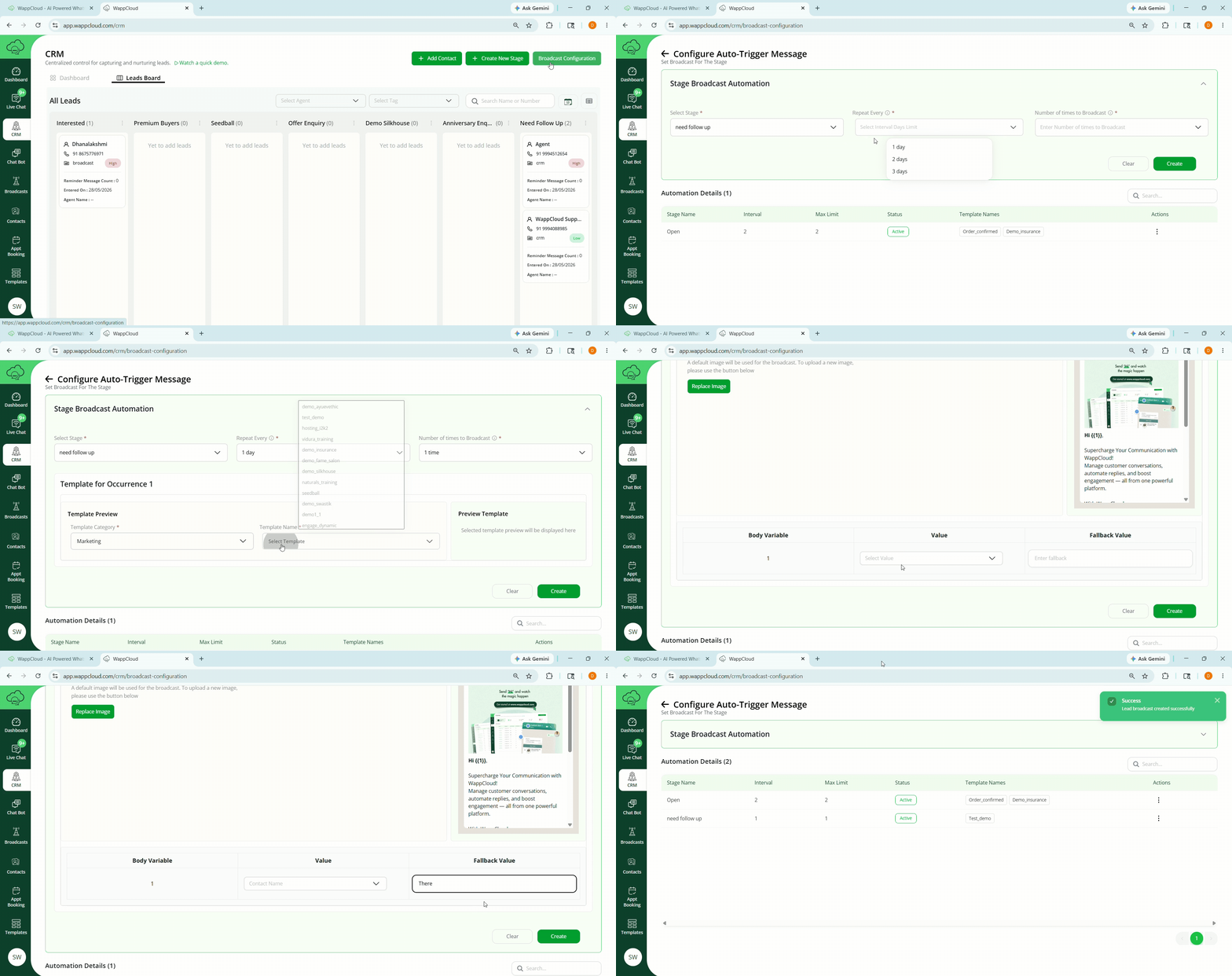
Steps to Configure Automated Broadcast
- Click the Broadcast Configuration button.
- Select the stage for which the automated message should be triggered.
- Configure:
- Day Interval Limit
- Number of Repetitions
- Select:
- Template Category
- Template Name
- If the template contains dynamic variables:
- Assign variable values
- Configure fallback values
- Click Create to save the automation.
Note:
The configured broadcast will continue sending messages to leads in the selected stage until the automation is paused.
Setting Priority for Contacts
Priority can be assigned directly from the CRM stage view.
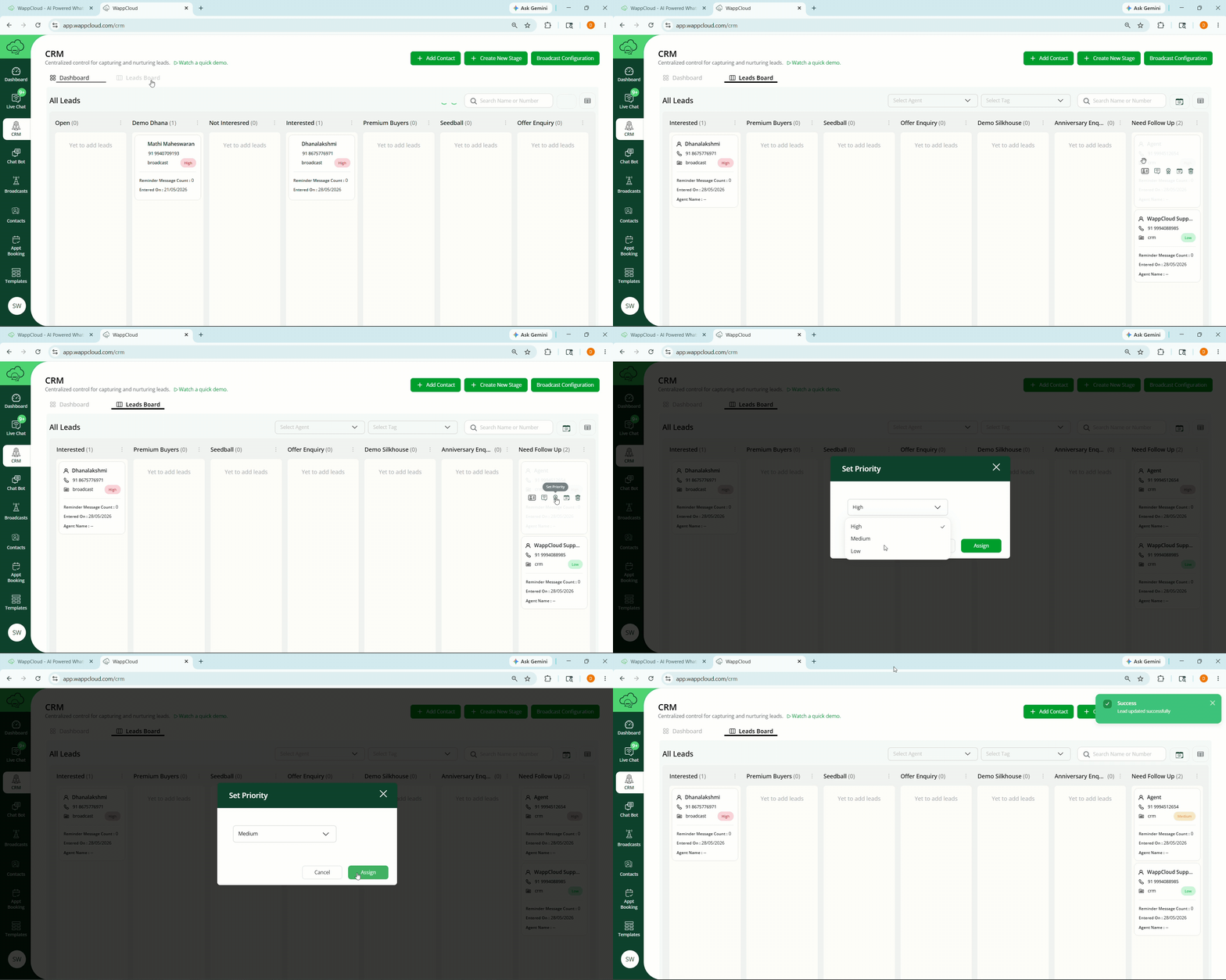
Steps
- Hover over the contact in the CRM stage.
- Click the Set Priority option.
- Select the priority level:
- High
- Medium
- Low
- Click Assign.
Setting Follow-Up Date and Time
Follow-up schedules help track future communication with leads.
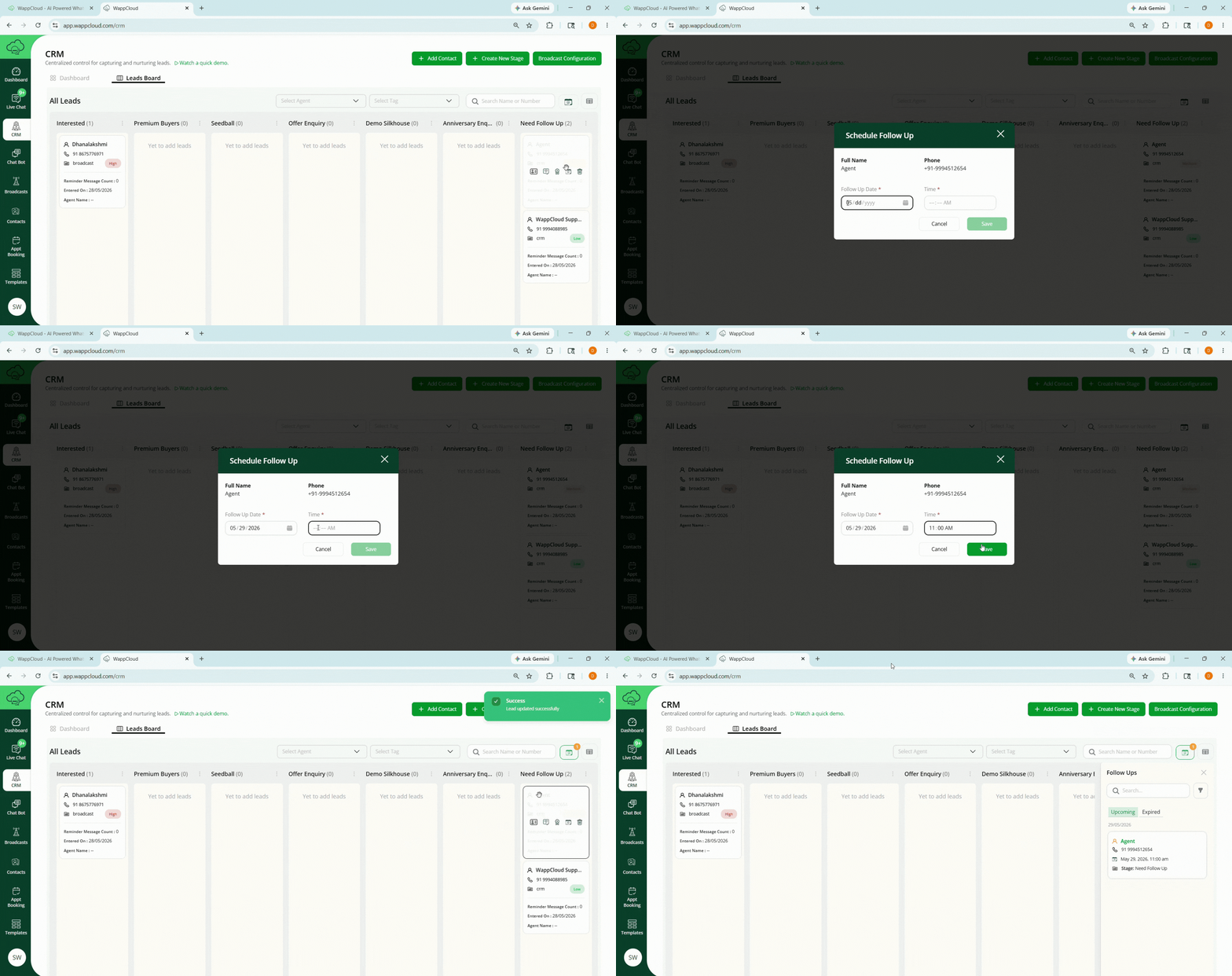
Steps
- Hover over the contact in the CRM stage.
- Click the Set Follow-Up option.
- Enter:
- Follow-Up Date (MM/DD/YYYY)
- Follow-Up Time (HH:MM)
- Click Save.
Assigning Agent to Contact
Agents can be assigned to manage individual leads.
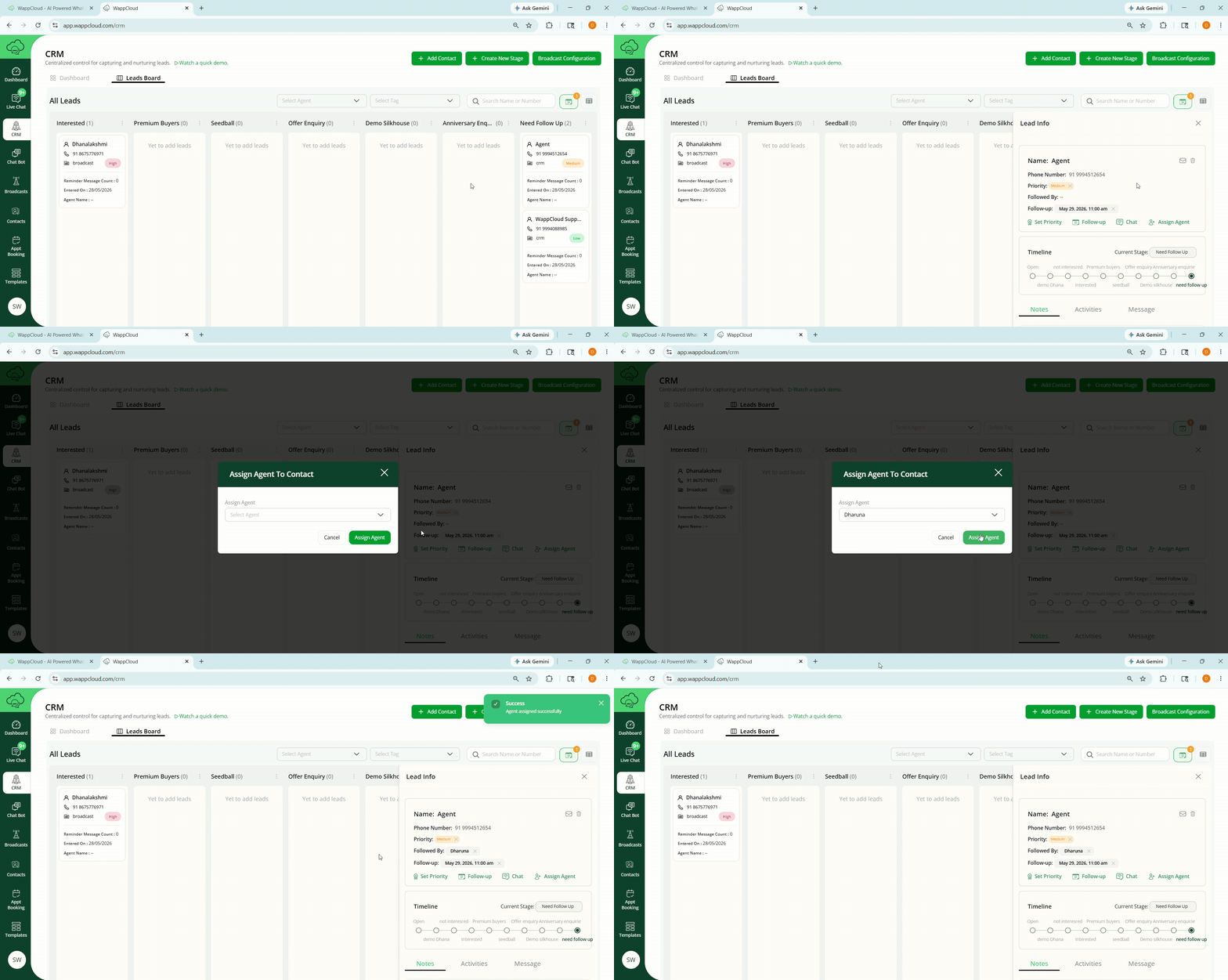
Steps
- Hover over the contact in the CRM stage.
- Click the View Leads option.
- In the Lead Information section, click Assign Agent.
- Select the agent name from the dropdown list.
- Click Assign Agent.
Note
Agents must be created in the system before they can be assigned to contacts.
Adding Notes
Notes help maintain internal records related to lead communication and activities.
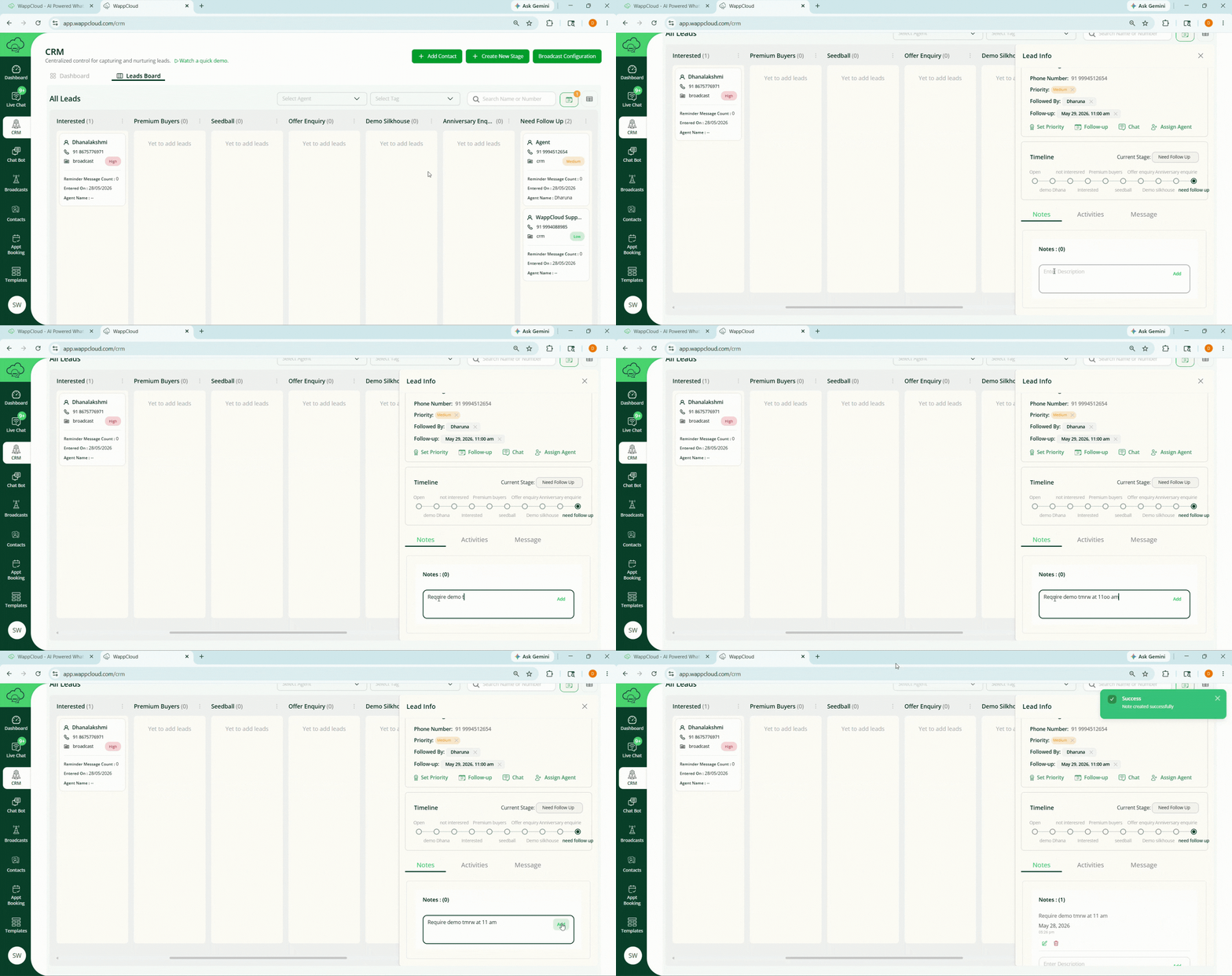
Steps
- Hover over the contact in the CRM stage.
- Click the View Leads option.
- Enter the required information under the Notes section.
- Click Add to save the note.