Importing Bulk Contacts
Save time by importing multiple contacts at once using the Import Contacts feature. This option is ideal for businesses handling large contact lists, allowing you to upload customer details in bulk instead of adding them one by one. By using a standardized Excel template, you can ensure accurate and consistent data entry while quickly populating your contact database.
Follow the steps below to import contacts successfully.
Steps in Importing Contacts
Step 1: Download the Sample Template
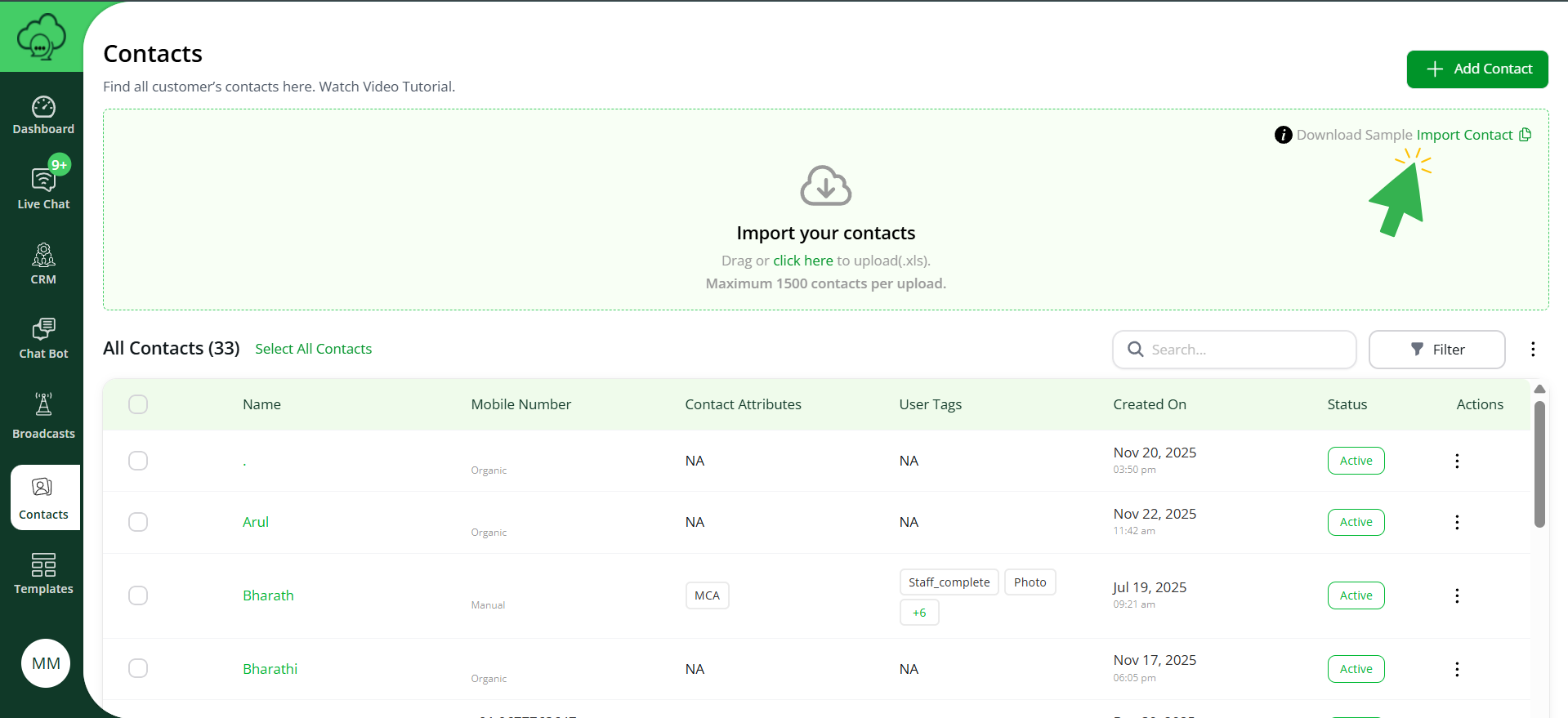
- Go to the Contacts section.
- Click Download Sample Template to get the pre-formatted
.xlsfile. - Open the file and review the required fields:
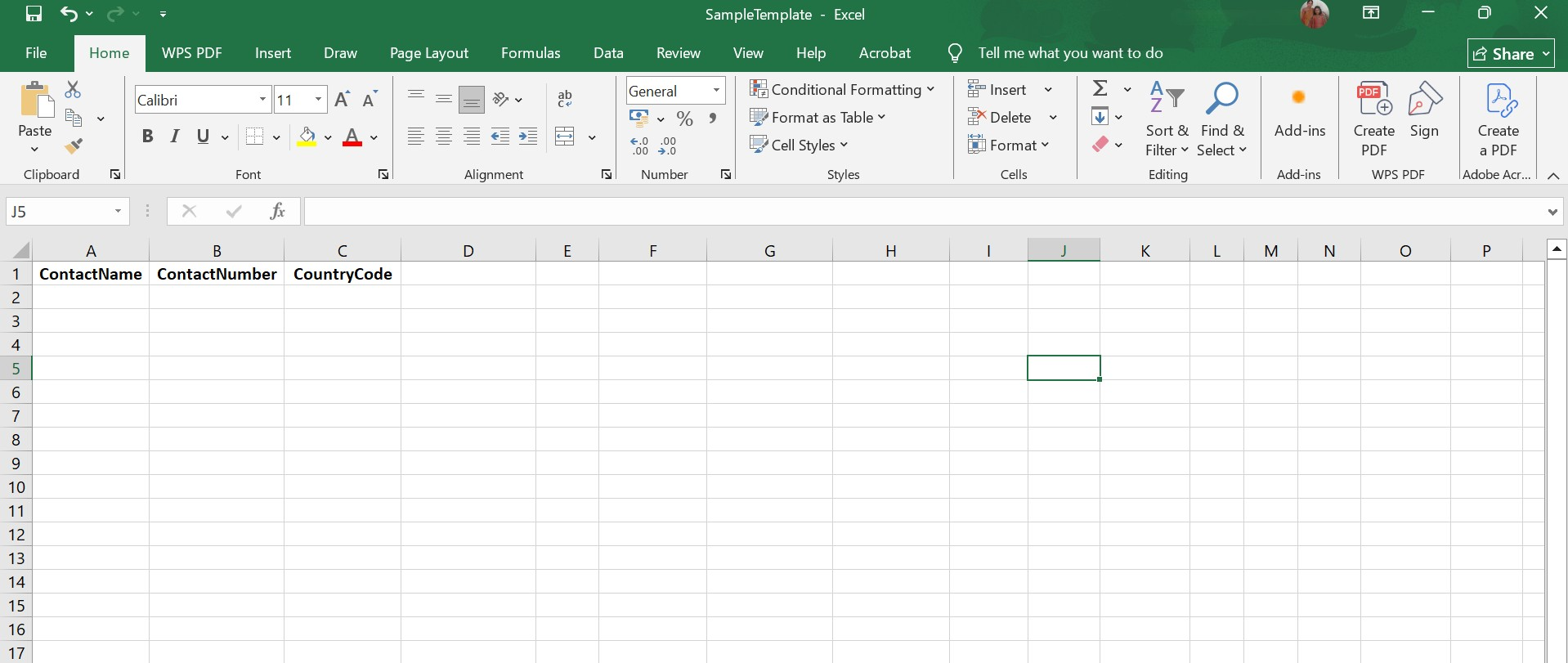
- Name
- Country Code
- Mobile Number
Step 2: Fill in Contact Details
- Open the downloaded file in Excel, Google Sheets, or any spreadsheet editor.
- Enter the required information for each contact:
- Name – Full name of the contact.
- Mobile Number – Ensure the number is in the correct format.
- Email – Add email addresses if available.
- Attributes / Tags – Add optional details such as location, preferences, or tags.
- Save the file after filling in all contact details.
Step 3: Upload the Completed Template
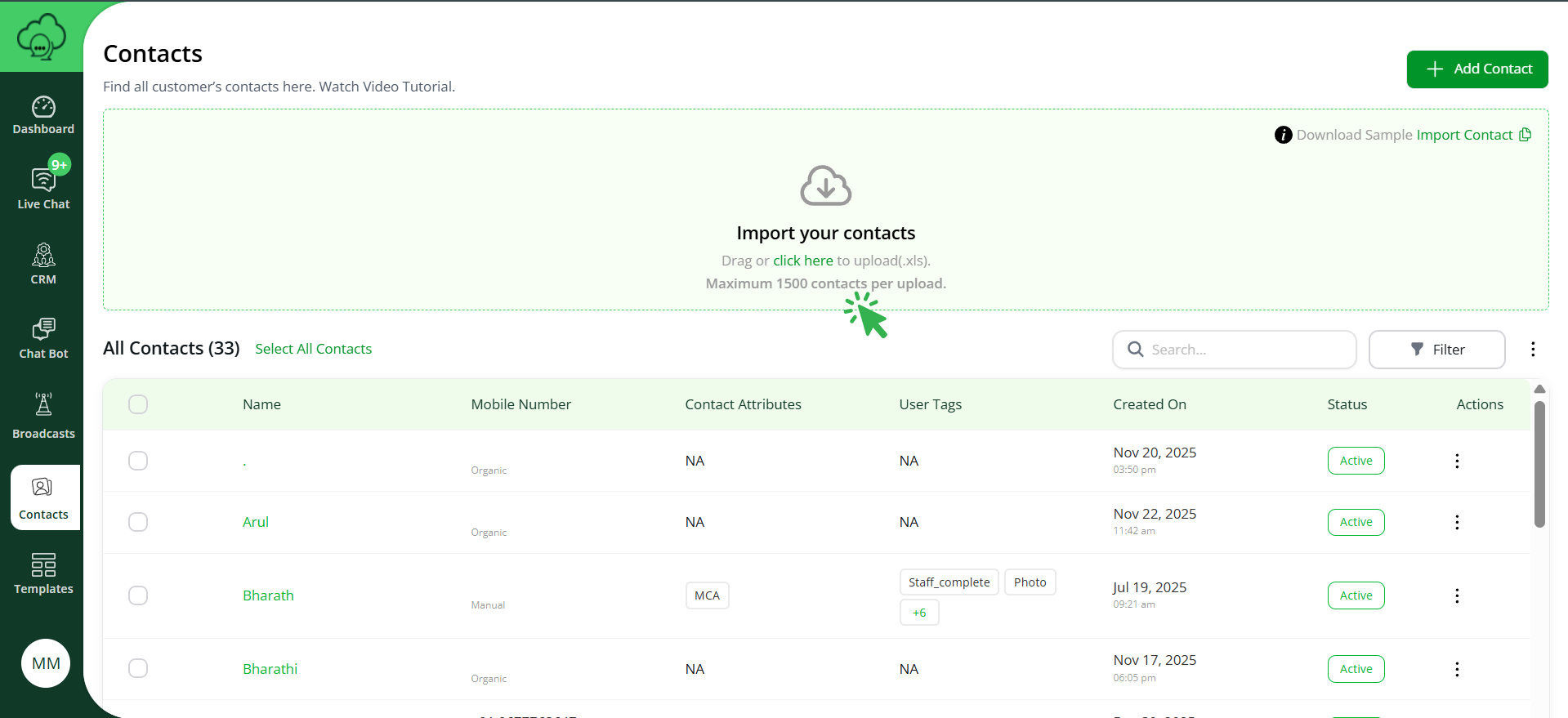
- Return to the Contacts section in WappCloud.
- Drag and drop the completed file into the Import Contacts area, or click the upload button to select the file manually.
Step 4: Import Contacts
- Click Import to upload all contacts.
- Wait for the upload process to complete.
Note:
All imported contacts will appear in the All Contacts list and will be ready for campaigns and communication.