Managing Contacts in WappCloud
After adding contacts, WappCloud allows you to efficiently manage and organize them. You can edit contact details, disable or delete contacts, assign tags for segmentation, and search or filter contacts to quickly find the required audience.
Editing Contacts
You can update contact details at any time to keep your database accurate and up to date.
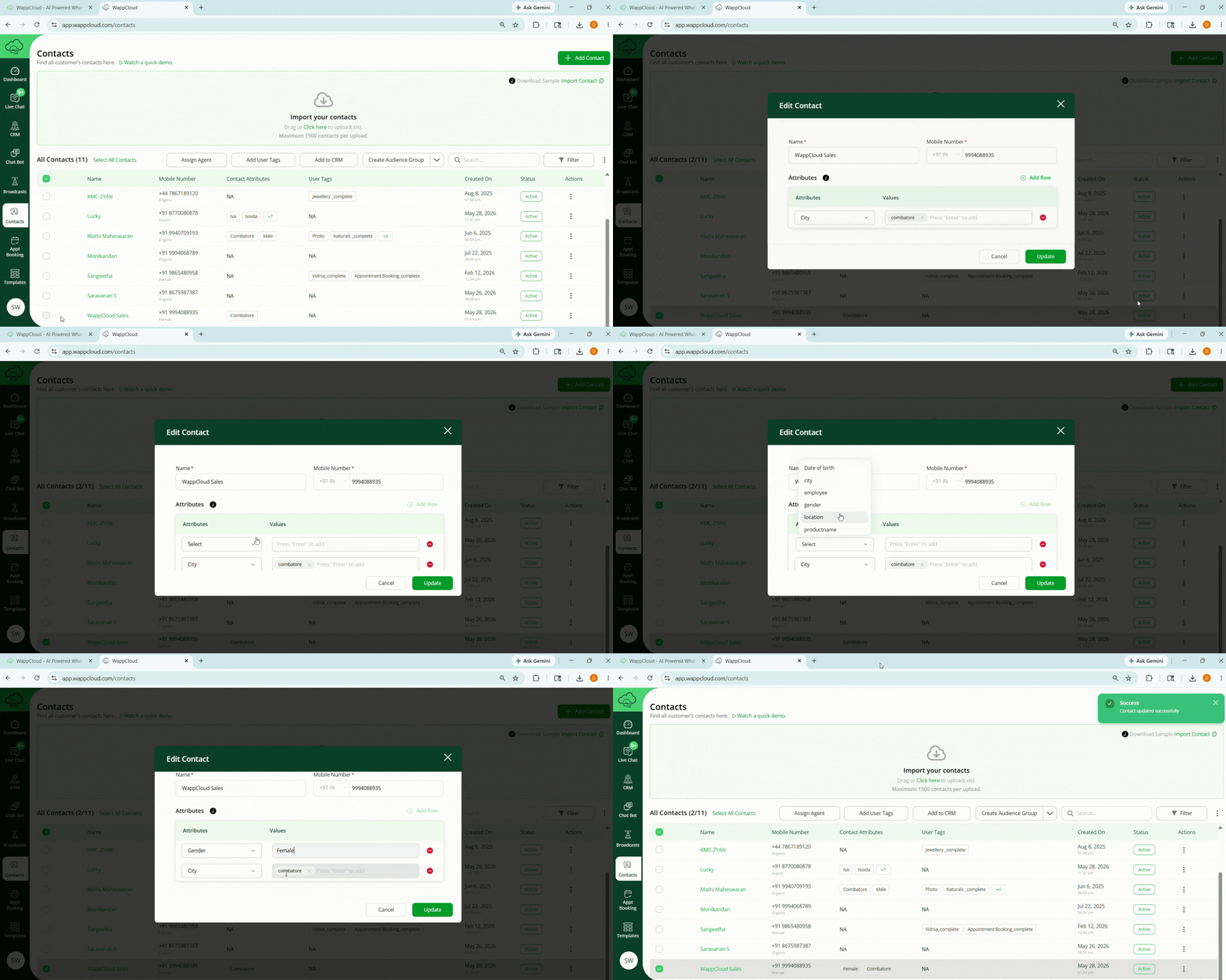
Steps to Edit a Contact
-
Go to the Contacts section.
-
Locate the contact you want to edit.
-
Click the three dots under the Actions column.
-
Select Edit.
-
Update the required details such as:
- Name
- Mobile Number
- Email Address
- Contact Attributes
-
Click Update to save the changes.
Note:
The updated contact information will be immediately reflected in the contact list.
Disabling Contacts
Disabling a contact temporarily deactivates the contact without permanently removing it from the database.
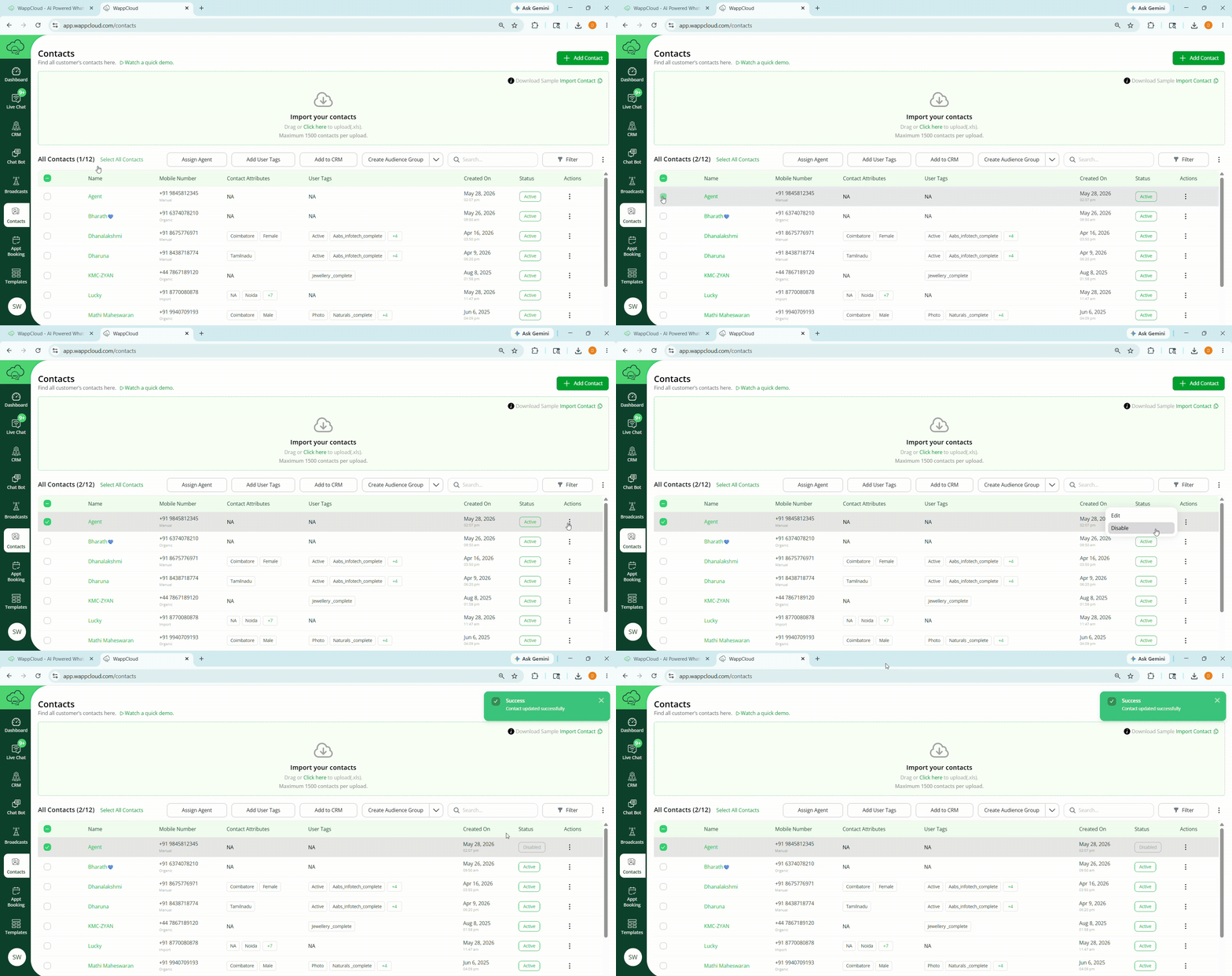
Steps to Disable a Contact
- Go to the Contacts section from the Dashboard.
- Locate the contact using the contact list or search bar.
- Click the three dots under the Actions column next to the contact.
- Select Disable from the dropdown menu.
Note:
The contact will now become inactive and can be reactivated later if required.
Deleting Contacts
Deleting a contact permanently removes it from the contact database.
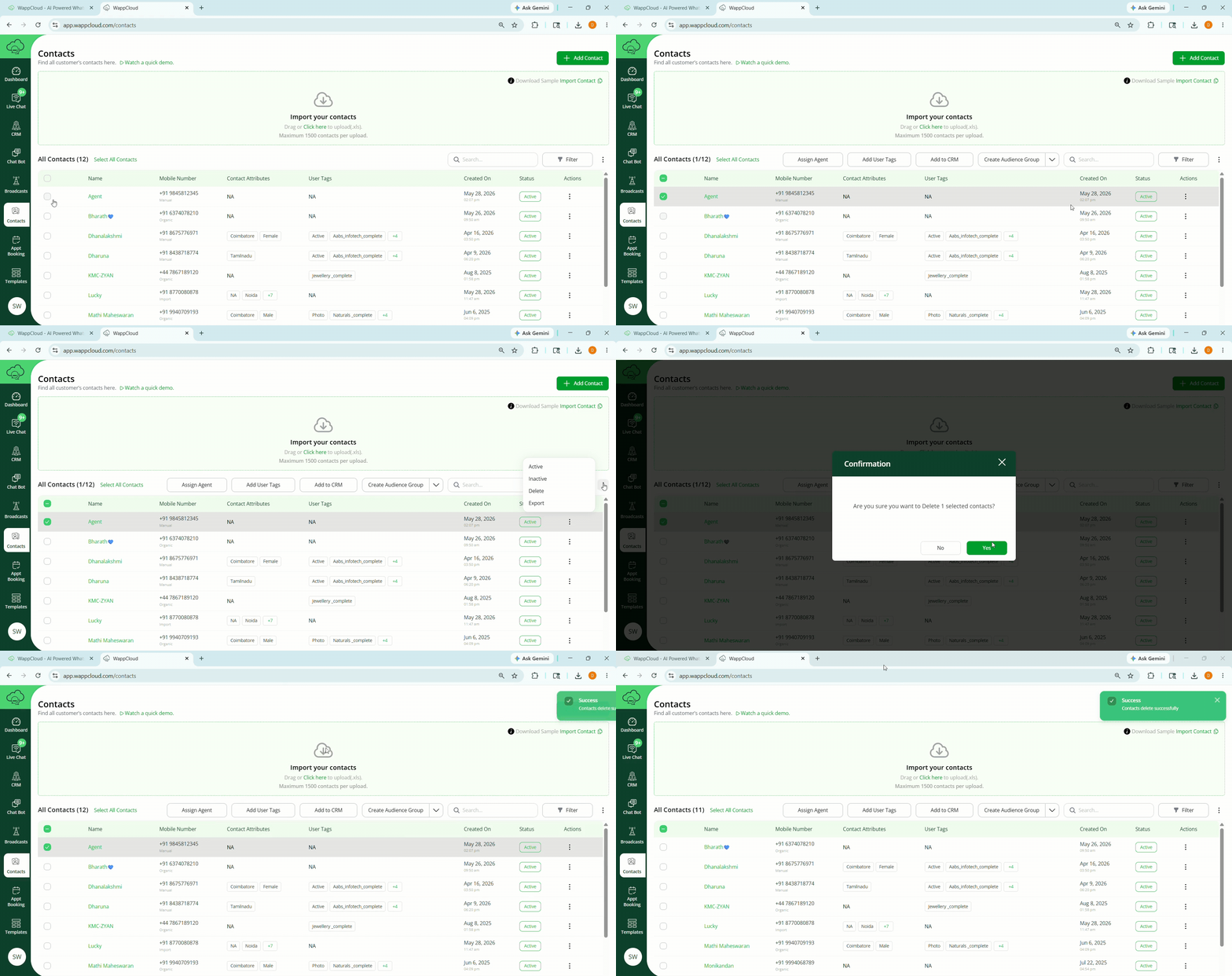
Steps to Delete a Contact
- Go to the Contacts section from the Dashboard.
- Locate the contact you want to delete using the contact list or search bar.
- Click the three dots under the Actions column.
- Select Delete from the dropdown menu.
- Click Confirm to permanently remove the contact.
Note:
Deleted contacts cannot be recovered once removed.
Contact Attributes
Contact Attributes are custom fields used to store additional information about contacts in WappCloud. They help organize contacts and personalize communication.
Attributes can store details such as:
- Location
- Customer Type
- Preferences
- Order Details
Attributes can be added manually from the Contacts page or collected automatically through chatbot interactions.
Creating Contact Attributes
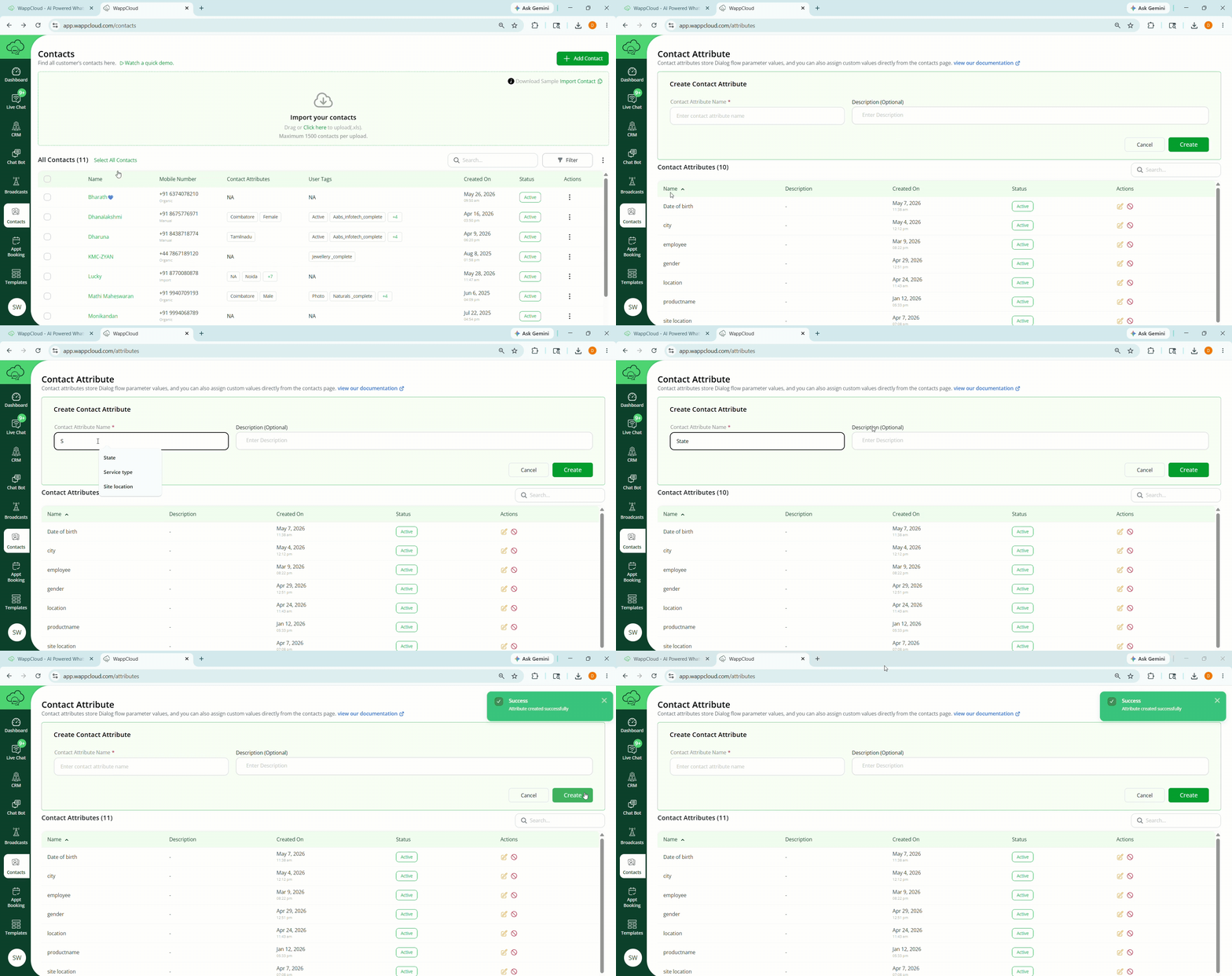
Step 1:
Hover your cursor over the Contacts menu and select Contact Attributes from the dropdown options.
Step 2:
Under the Create Contact Attributes section, enter the required attribute name.
Step 3:
Click Create to create the contact attribute.
Note:
- The created attribute can now be assigned to contacts for easy filtering and campaign targeting.
- The attribute will also appear in the sample Excel template used for bulk contact import, allowing you to assign attribute values directly while importing contacts.
Assigning Contact Attributes
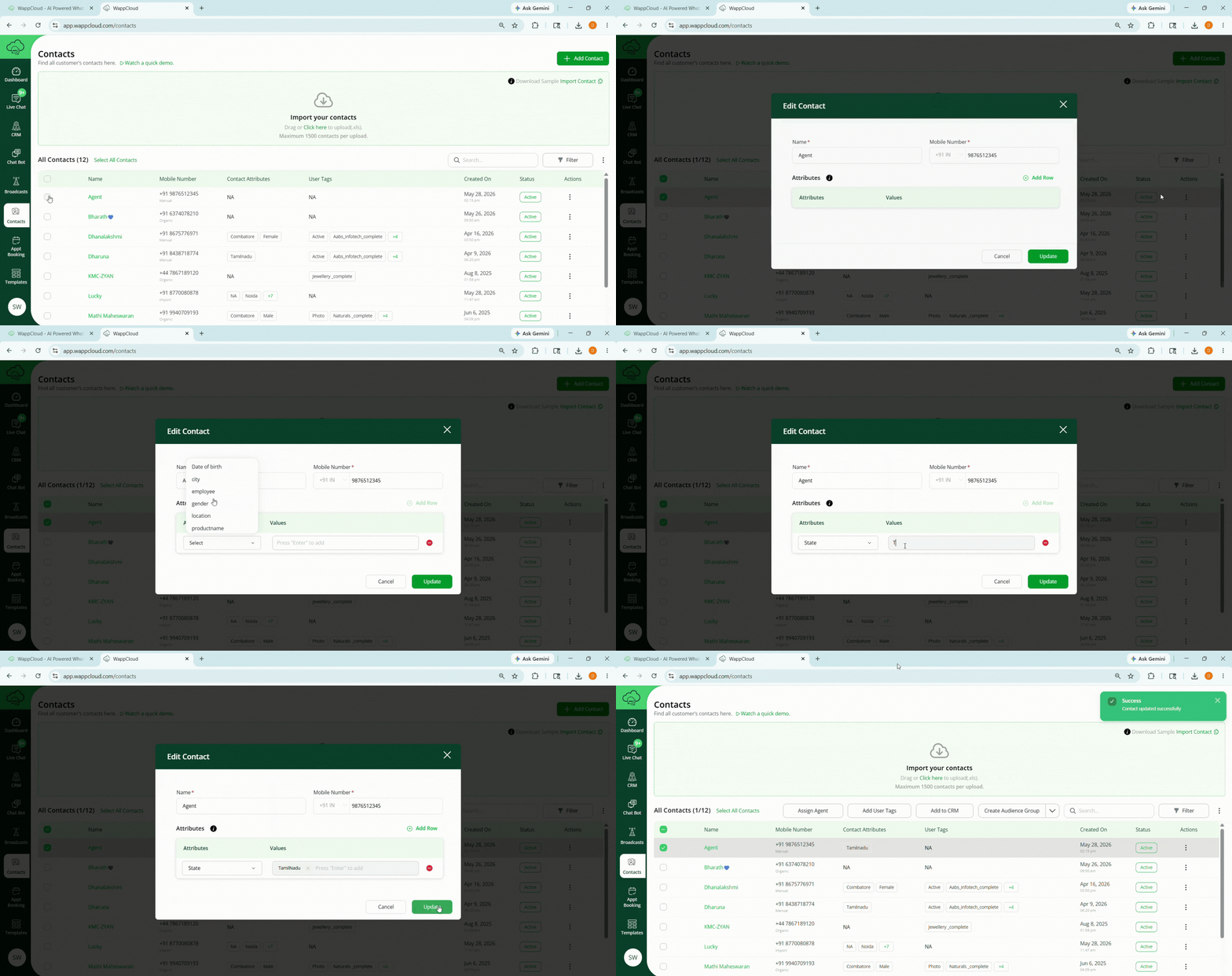
Step 1:
Go to the Contacts section and select the contact you want to assign an attribute to.
Step 2:
Click the three dots under the Actions column next to the contact and select Edit.
Step 3:
In the contact details pop-up window, click Add Row.
Step 4:
Select the required attribute from the dropdown list, enter the attribute value, and press Enter to add the attribute.
Step 5:
Click Update to save the changes and assign the attribute to the contact.
User Tags
Tags help you group and segment contacts for better targeting in campaigns.
Creating User Tags
User Tags help you organize and segment contacts for better targeting in campaigns and communication.
Steps to Create User Tags
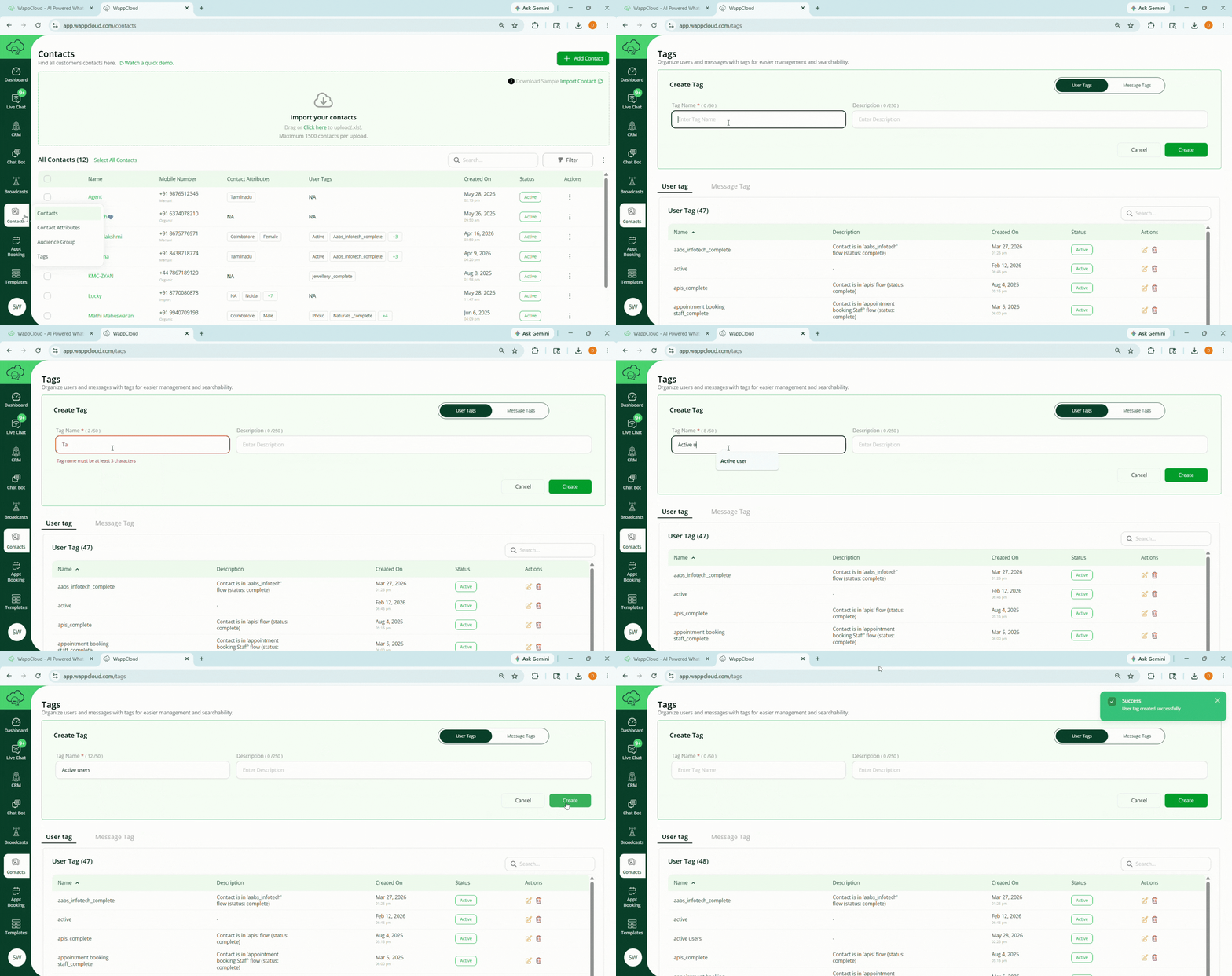
- Hover your cursor over the Contacts menu.
- Select Tags from the dropdown options.
- Under the Create Tags section, enter the required tag name.
- Click Create to create the new tag.
Note:
The created tag can now be assigned to contacts for easy filtering and campaign targeting.
Adding User Tags
User Tags help you organize contacts into different groups, making it easier to filter contacts and send targeted campaigns or broadcasts.
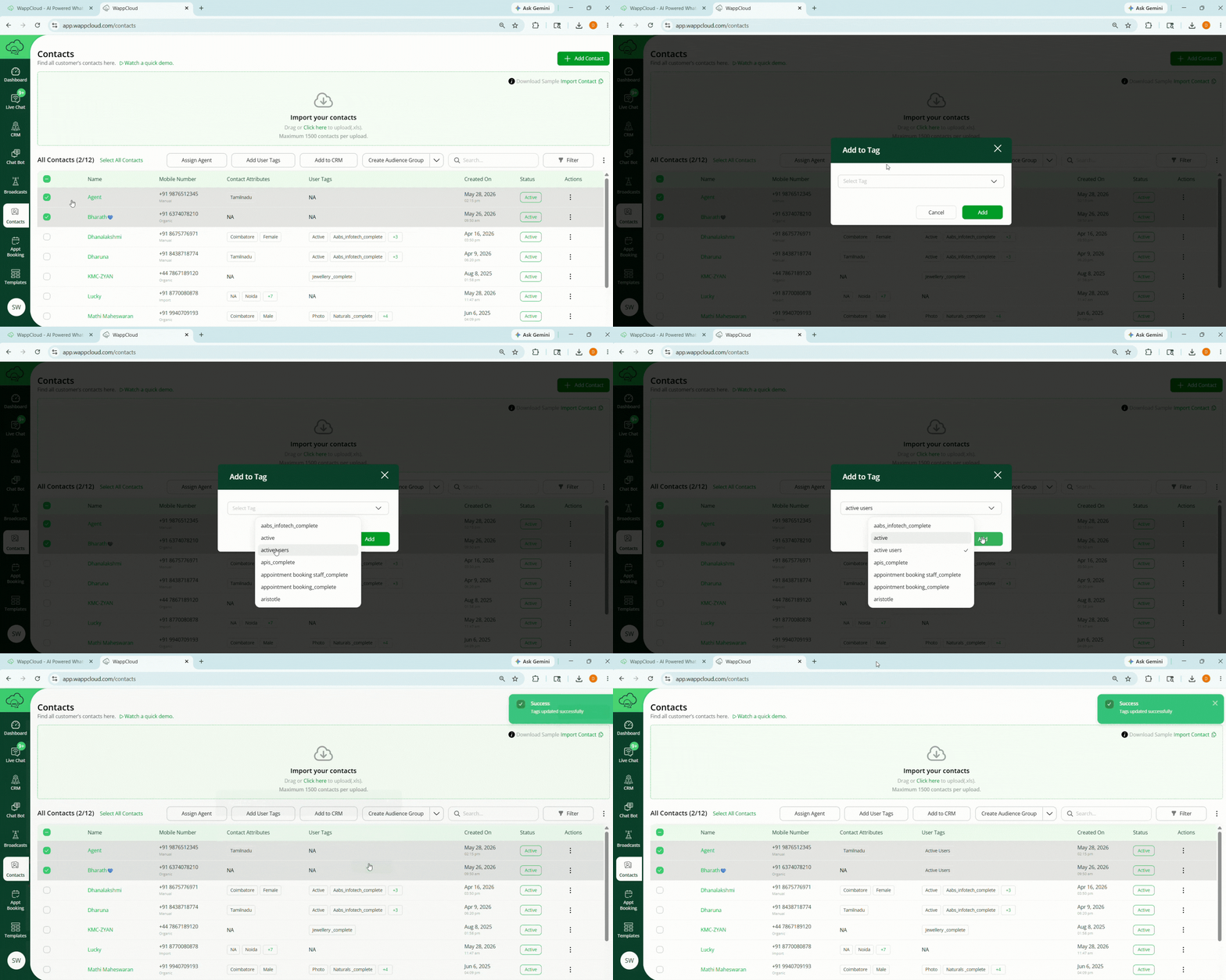
Steps to Add User Tags
-
Select the contact you want to add a tag to.
-
Click the Add User Tag option available on the Contacts page.
-
Select an existing tag from the dropdown list or create a new tag if required.
-
Click Add to assign the selected tag to the contact.
Note:
Once the tag is added, the contact can be easily identified, filtered, and targeted for specific campaigns and communication.
Searching and Filtering Contacts
You can quickly locate contacts using the search bar or advanced filters.
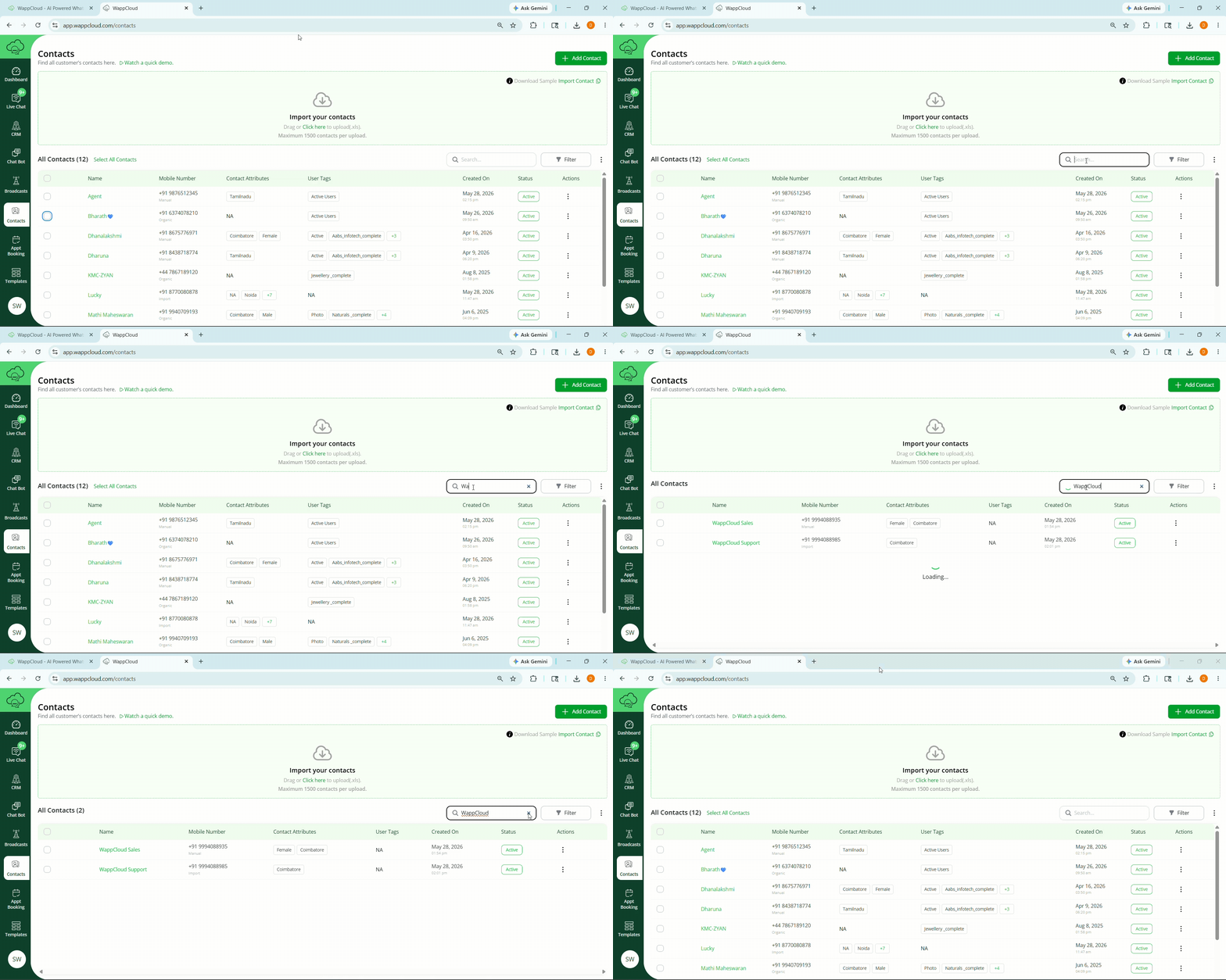
Search
Use the search bar to find contacts by Name or Mobile Number.
Filters
Filters allow you to narrow down contacts based on specific criteria:
- Name – Filter by contact name
- Mobile Number – Filter by phone number
- Attributes – Filter by location, preferences, or custom details
- Tags – Filter by assigned user tags
- Created On – Filter by date range
- Status – Active or Disabled
- Source – Imported, Manual, or Organic
- Opt Status – Opt-in or Opt-out
Steps to Apply Filters
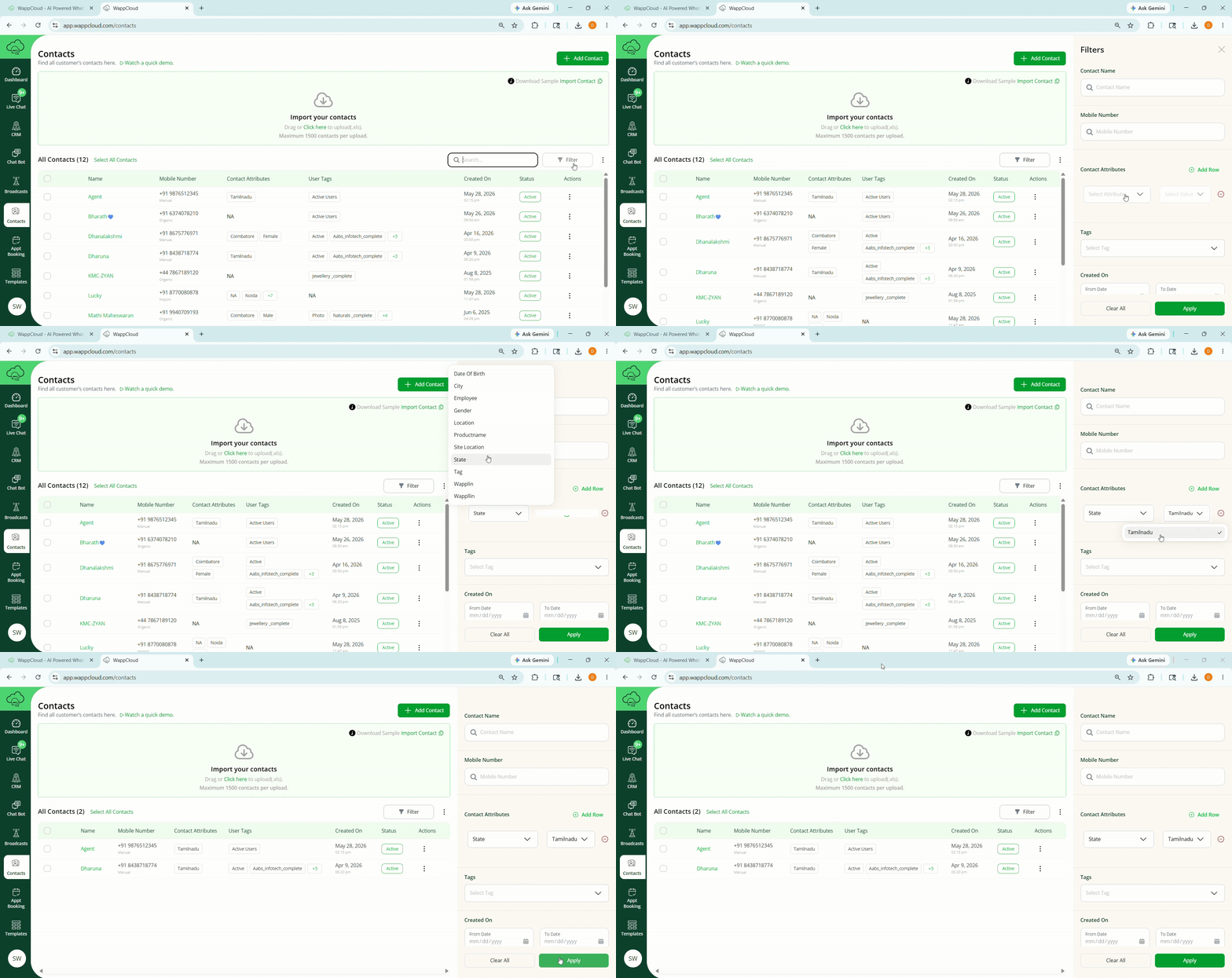
- Select the required filter criteria.
- Click Apply Filter.