Webhook Integration Guide
Step 1: Create a Webhook URL
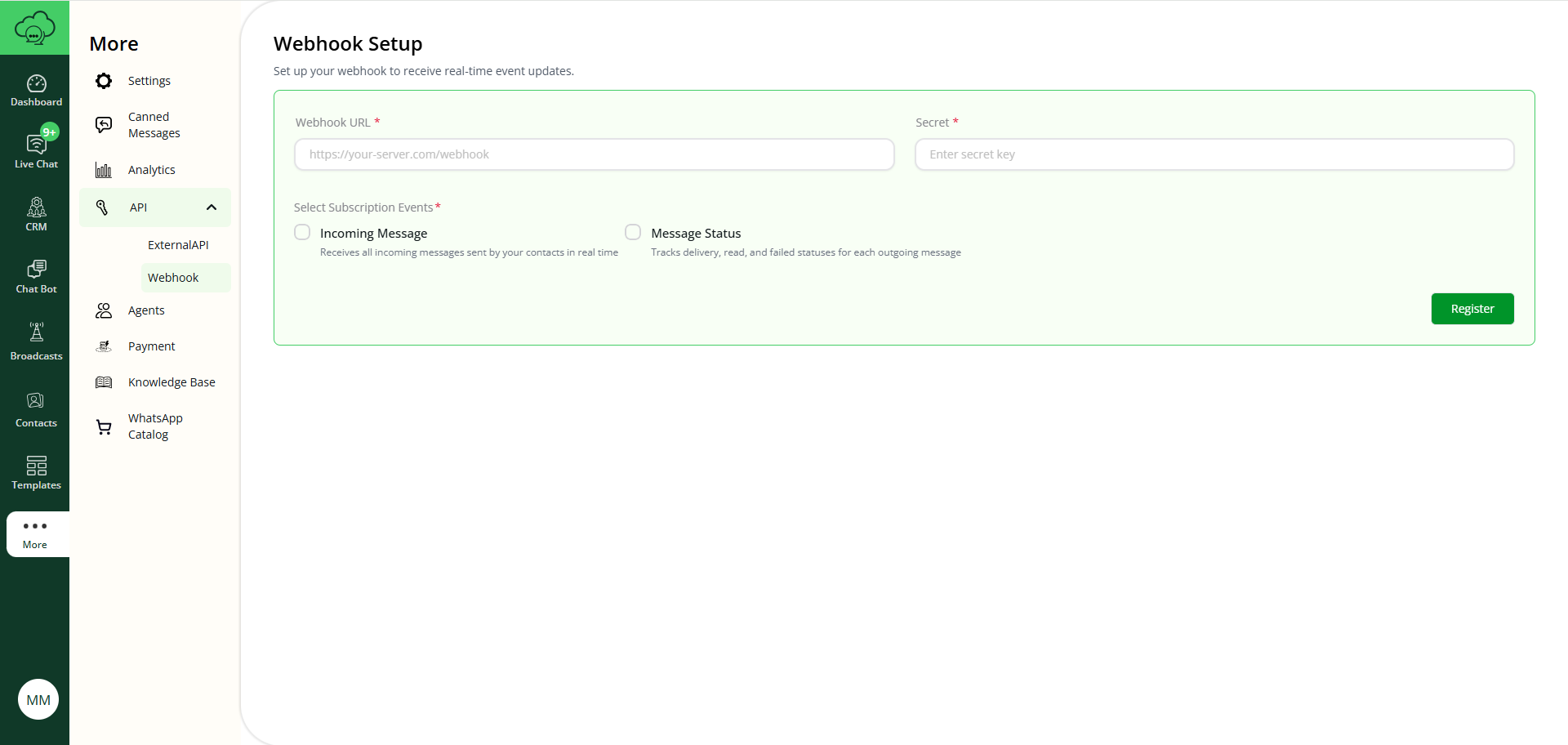
Create an endpoint that handles both GET and POST requests. This will be your webhook URL.
Example webhook URL:
https://example.app/webhookImplementation Requirements:
- Must handle
GETandPOSTmethods - Must be accessible over HTTPS
- Must return a 200 OK response for successful requests
Step 2: Select Webhook Events & Enter Secret Key
Follow the steps below:
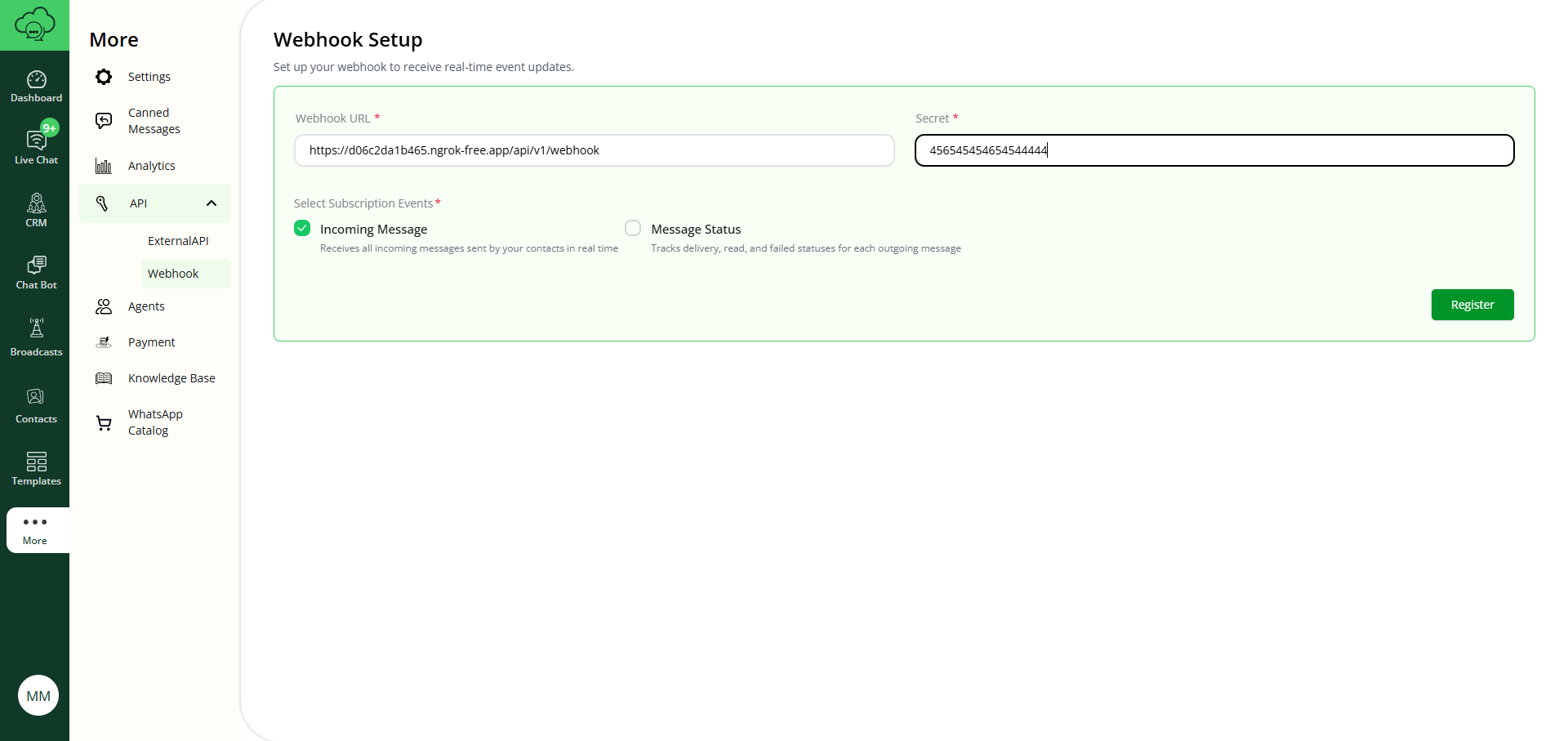
- Enter Webhook URL – Add the URL where you want to receive webhook notifications.
- Enter Secret Key – Provide a secret key to securely sign each webhook event.
- Select Events – Choose which events you want to receive notifications for:
- incoming_message – Receive all incoming messages (text, images, videos, audio, documents, stickers, location, contact cards, reactions, and button/list taps from your chatbot flows)
- status_update – Receive message delivery status updates (sent, delivered, read, failed)
- api_button_reply – Receive notifications when a customer taps a quick reply button on a message you sent through the External API
- Click Register – Save and register your webhook configuration.
Step 3: Validate Your Webhook URL
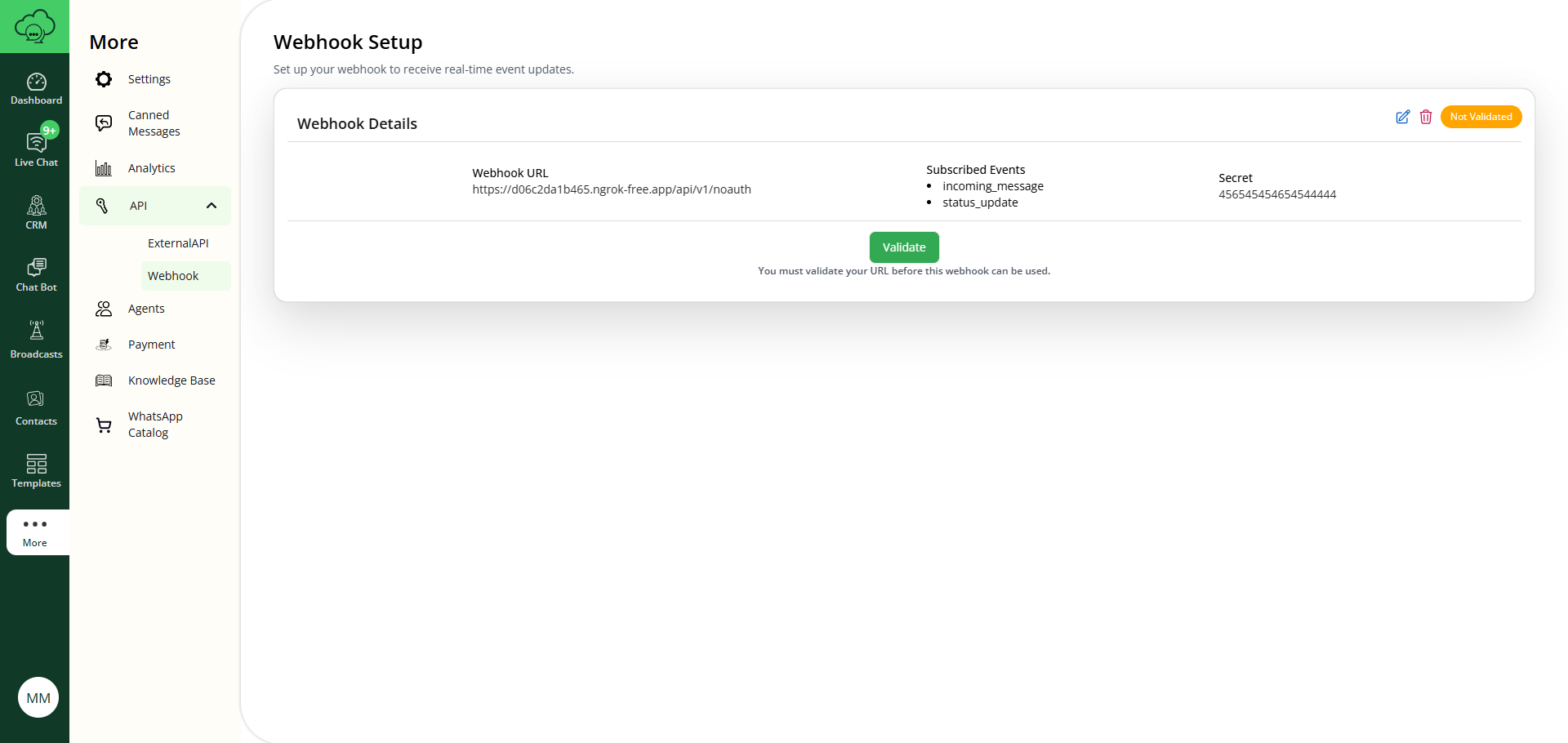
When you save your webhook URL in the dashboard, the system will send a GET request with a challenge parameter for verification.
Step 4: Handle Incoming Webhook Events
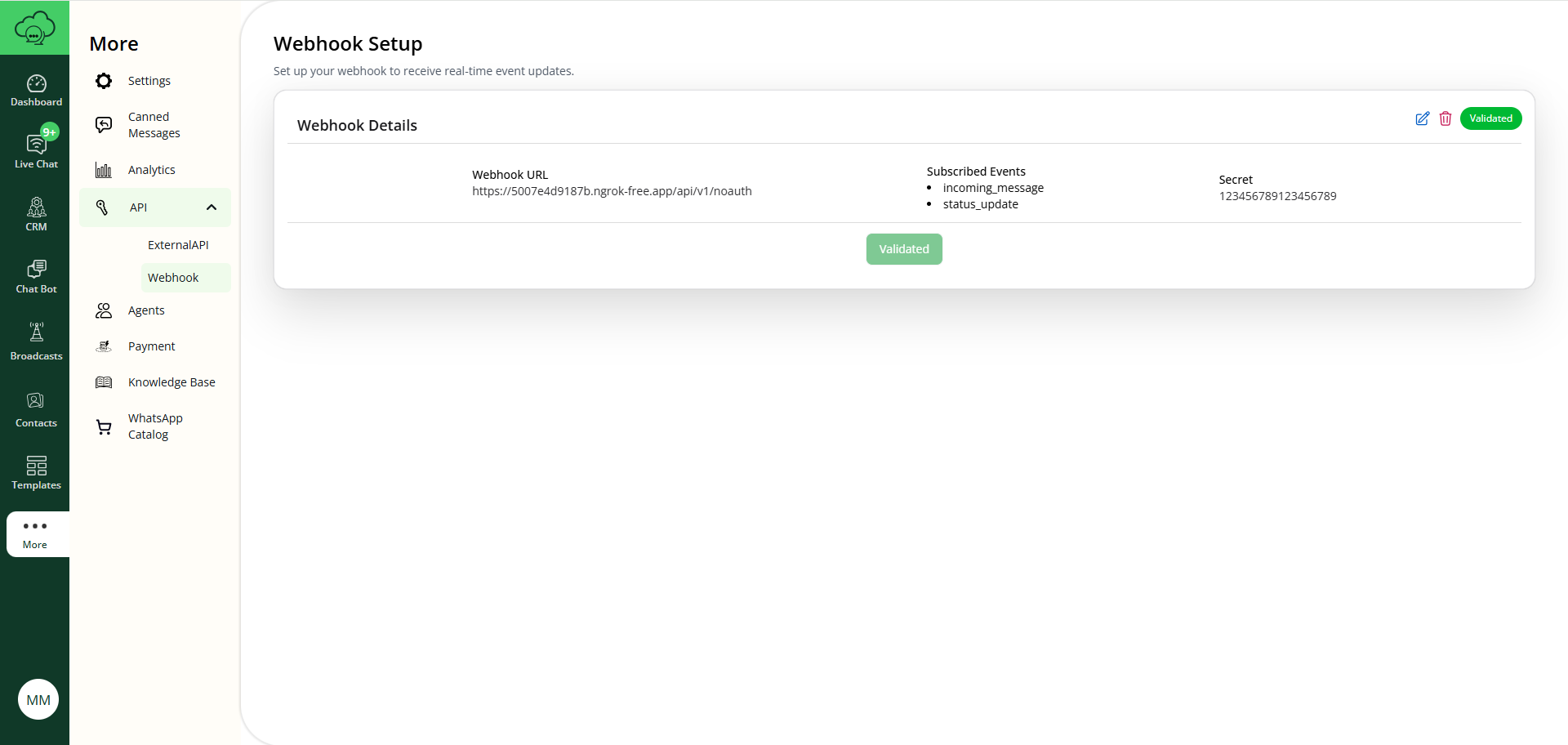
Once verified, your webhook will start receiving POST requests for the subscribed events. Handle these events in your application.
Testing Your Webhook
- Save your webhook URL in the dashboard
- Send a test message to your WhatsApp number
- Verify that you receive the webhook events
- Check your logs to ensure proper handling of the events