CRM - Lead Management System
Overview
The CRM (Customer Relationship Management) system helps you manage leads, track their activities, and automate communications through the sales pipeline.
Create Stage
Customize your sales pipeline by creating stages that match your business process.
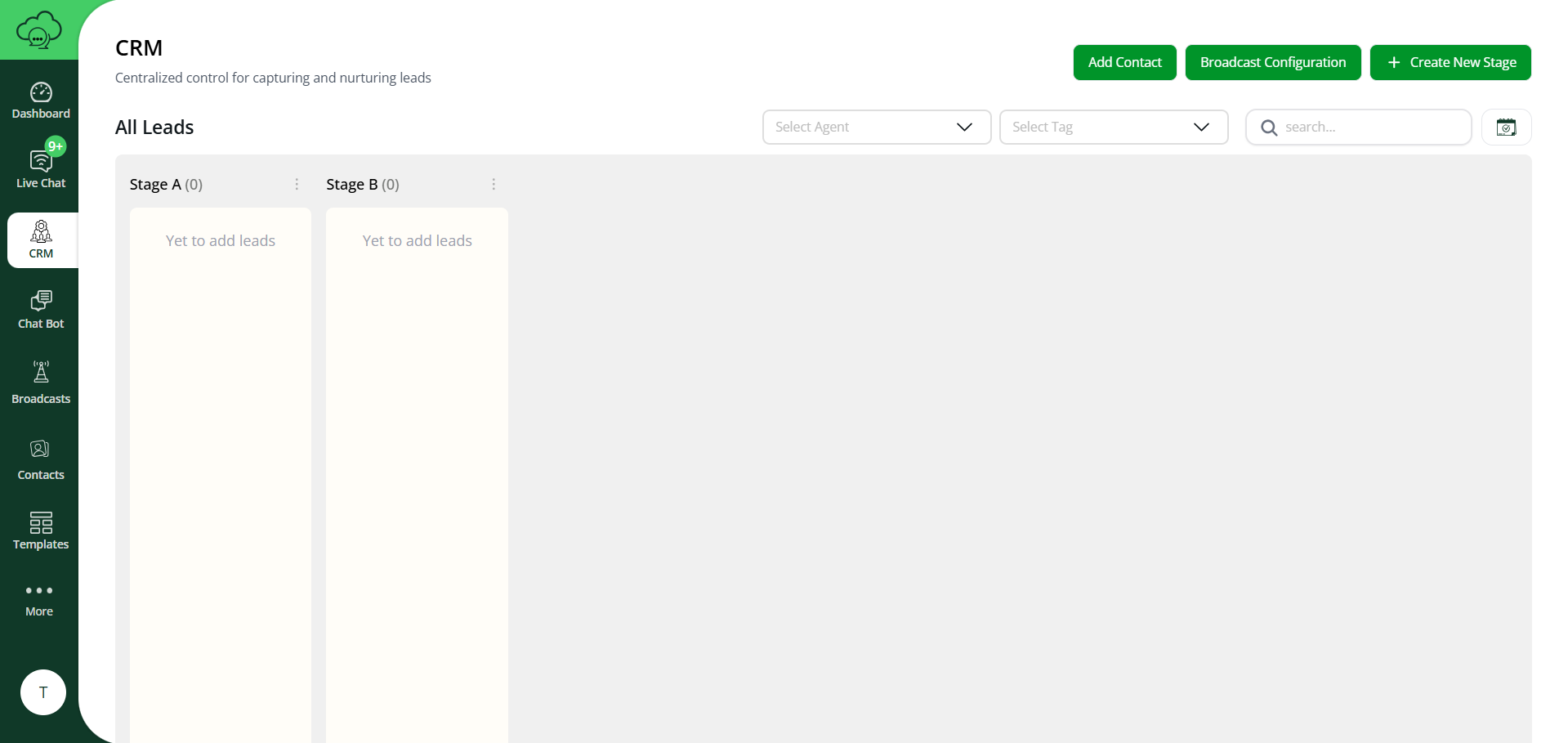
How to Create a Stage:
- Click the “Create Stage” button
- Enter stage name
- Click “Create”
List of Leads
View all your leads in one centralized location with key information at a glance.
Lead Information Displayed:
- Lead Name
- Phone Number
- Current Stage
- Priority Level
- Last Activity
- Follow-up Date
Lead Filters:
- Agent Filter
- Tags Filter
- Name Filter
- Number Filter
Lead Actions:
- View Lead Activity
- Live Chat
- Delete Lead
- Set Priority
- Add Follow-up
Add Contacts
How to Add a Contact:
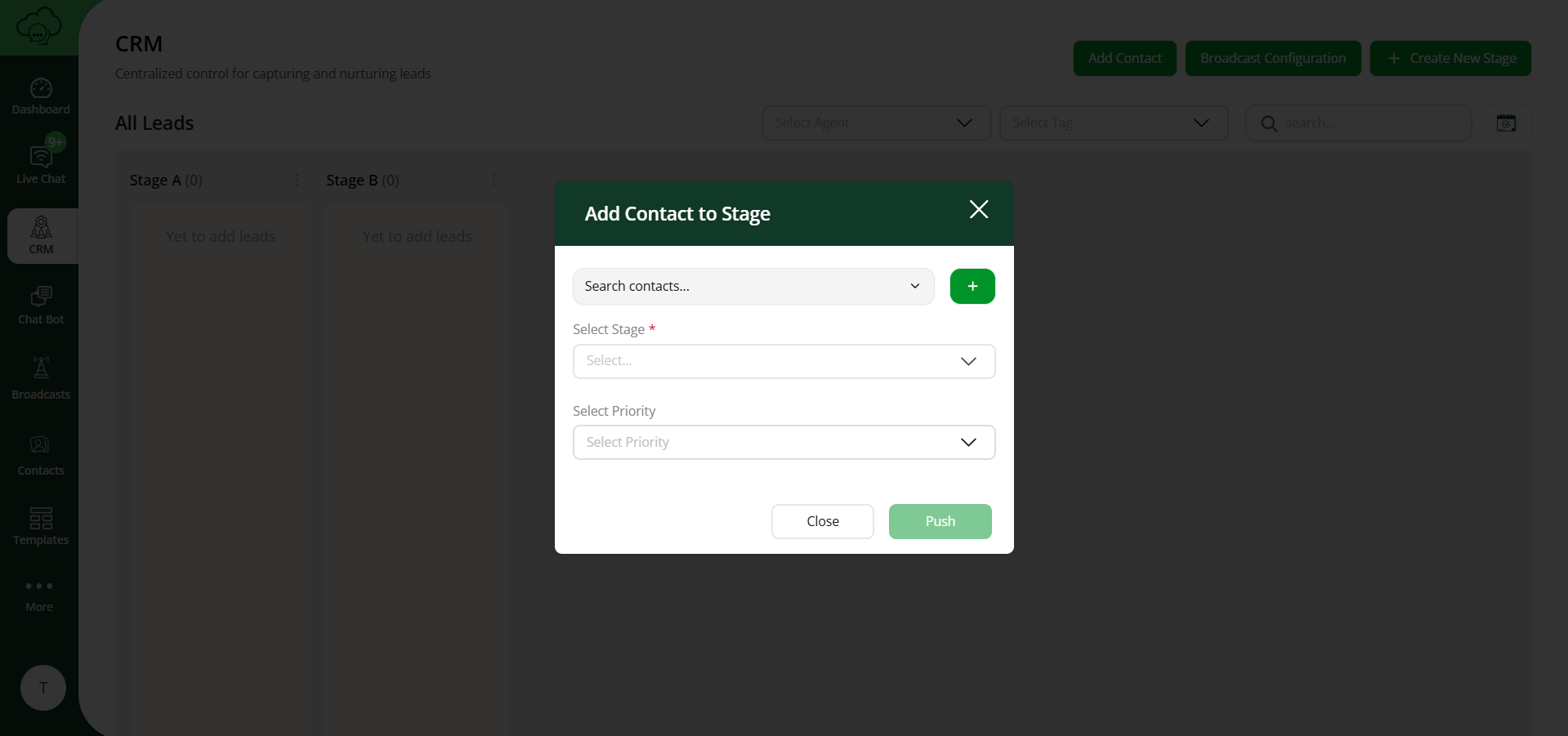
- Click “Add Contact” button
- Select the contact by searching in the search bar using a phone number or name
- Set initial priority and stage
- Click “Push”
Follow-up Information:
- Lead Name
- Follow-up Date & Time
- Priority Indicator
- Quick Actions
Lead Actions
Each lead has quick action icons for common tasks.
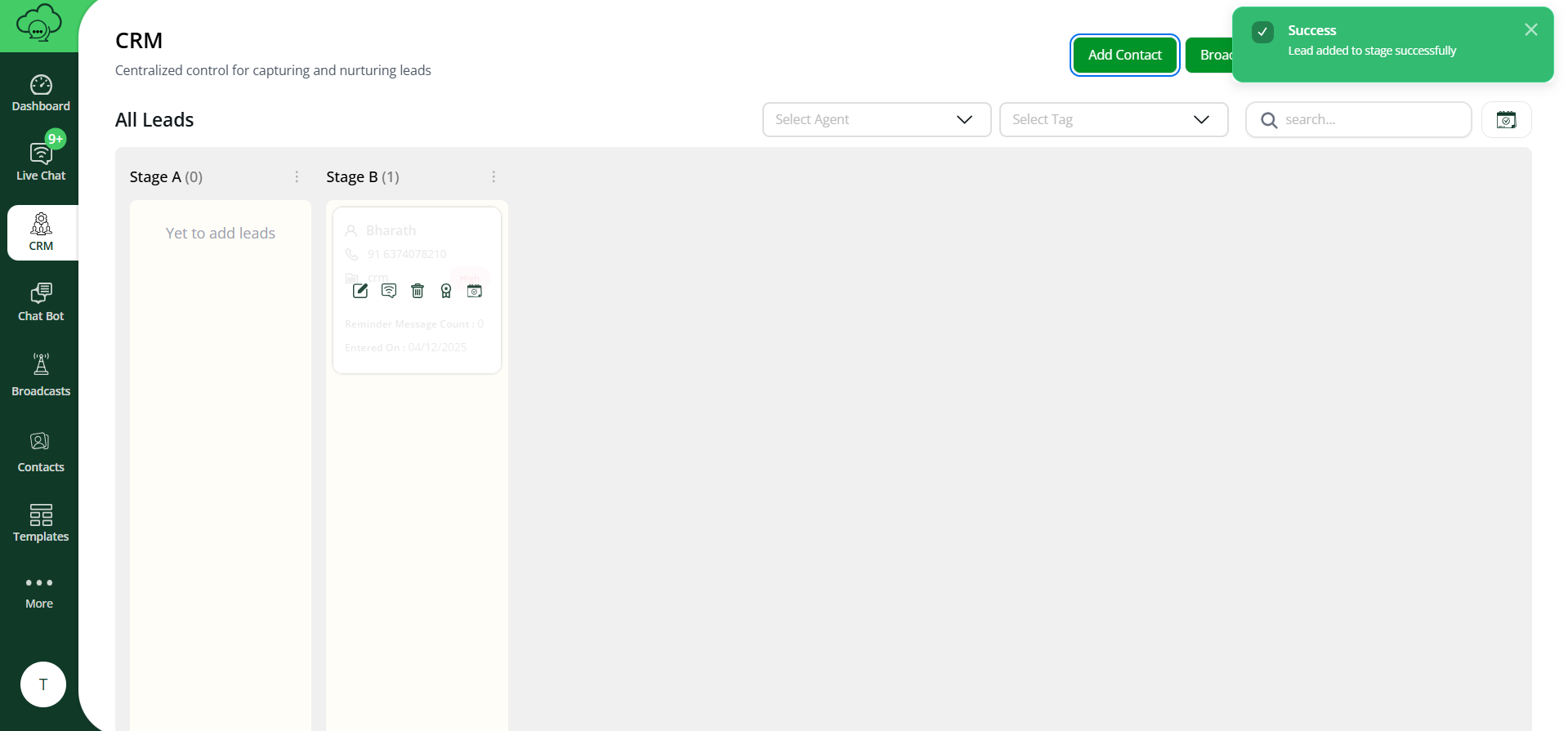
Available Actions:
👁️ View Lead Activity
Opens the detailed lead activity page showing complete interaction history.
💬 Live Chat
Opens the live chat interface to communicate with the lead in real-time.
🗑️ Delete Lead
Permanently removes the lead from the system (requires confirmation).
⭐ Set Priority
Assign priority levels (High, Medium, Low) to organize your follow-ups.
📅 Add Follow-up
Schedule a follow-up date and time for this lead.