Appointment Booking
The Appointment Booking Module helps businesses manage appointment scheduling, staff allocation, services, automated status updates, message templates, and follow-up reminders in a single workflow.
This document explains the complete configuration and operational flow of the Appointment Booking Module.
Booking Settings Configuration
Booking settings define how appointment slots are created and managed.
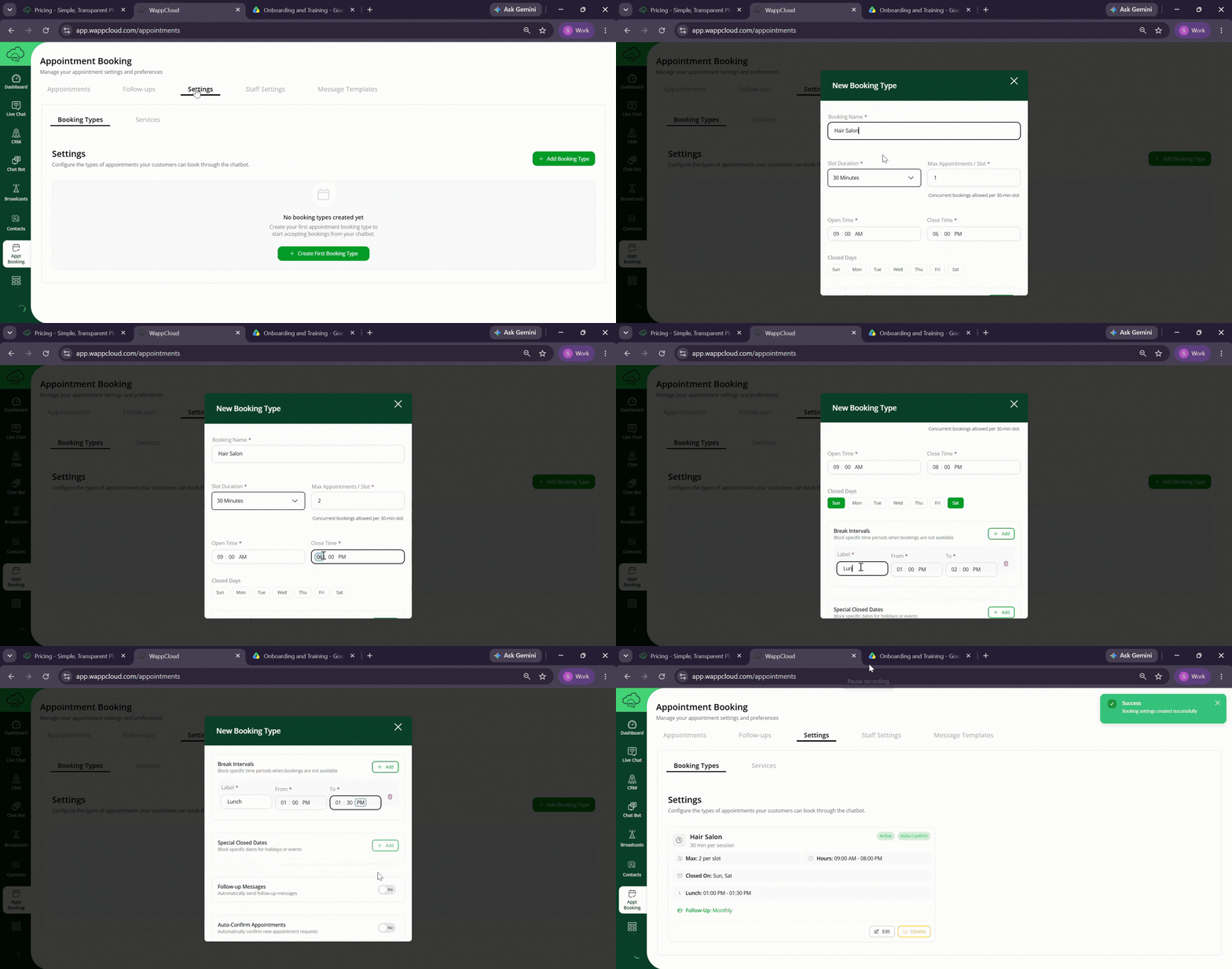
Steps to Configure Booking Settings
Step 1: Navigate to Appointment Booking > Settings > Booking Types.
Step 2: Create a new booking configuration.
Step 3: Enter the following details:
- Booking Name
- Session Duration
- Maximum Bookings Allowed Per Slot
Step 4: Configure working schedule:
- Working Hours
- Closed Days
- Lunch Break Timings
- Leave or Blocked Dates
Step 5: Configure follow-up schedule if required.
Step 6: Enable Auto Confirm if appointments should be confirmed automatically.
Step 7: Enable or disable the booking type based on requirement.
Staff Settings
Staff settings help manage appointment allocation and staff availability.
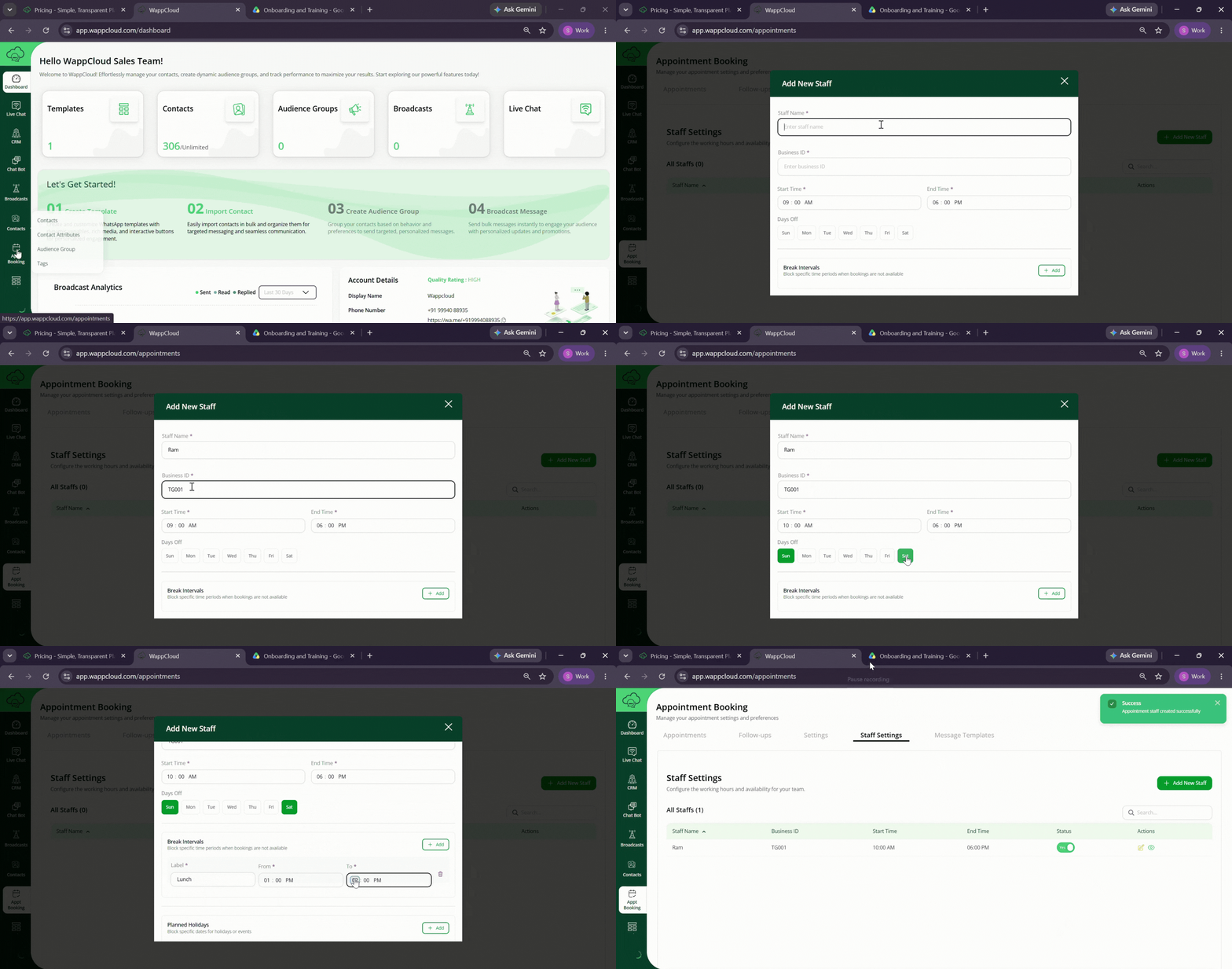
Steps to Configure Staff
Step 1: Navigate to Appointment Booking > Staff Settings.
Step 2: Click Add Staff.
Step 3: Configure:
- Staff Name
- Business ID
- Start Time
- End Time
- Availability Status
Step 4: Save the staff details.
Step 5: Enable or disable staff availability as needed.
Step 6: Edit existing staff information when required.
Note:
- Maximum of 10 staff members can be added.
- Disabled staff members will not appear during appointment allocation.
Service Configuration
Services define the appointment categories available for booking.
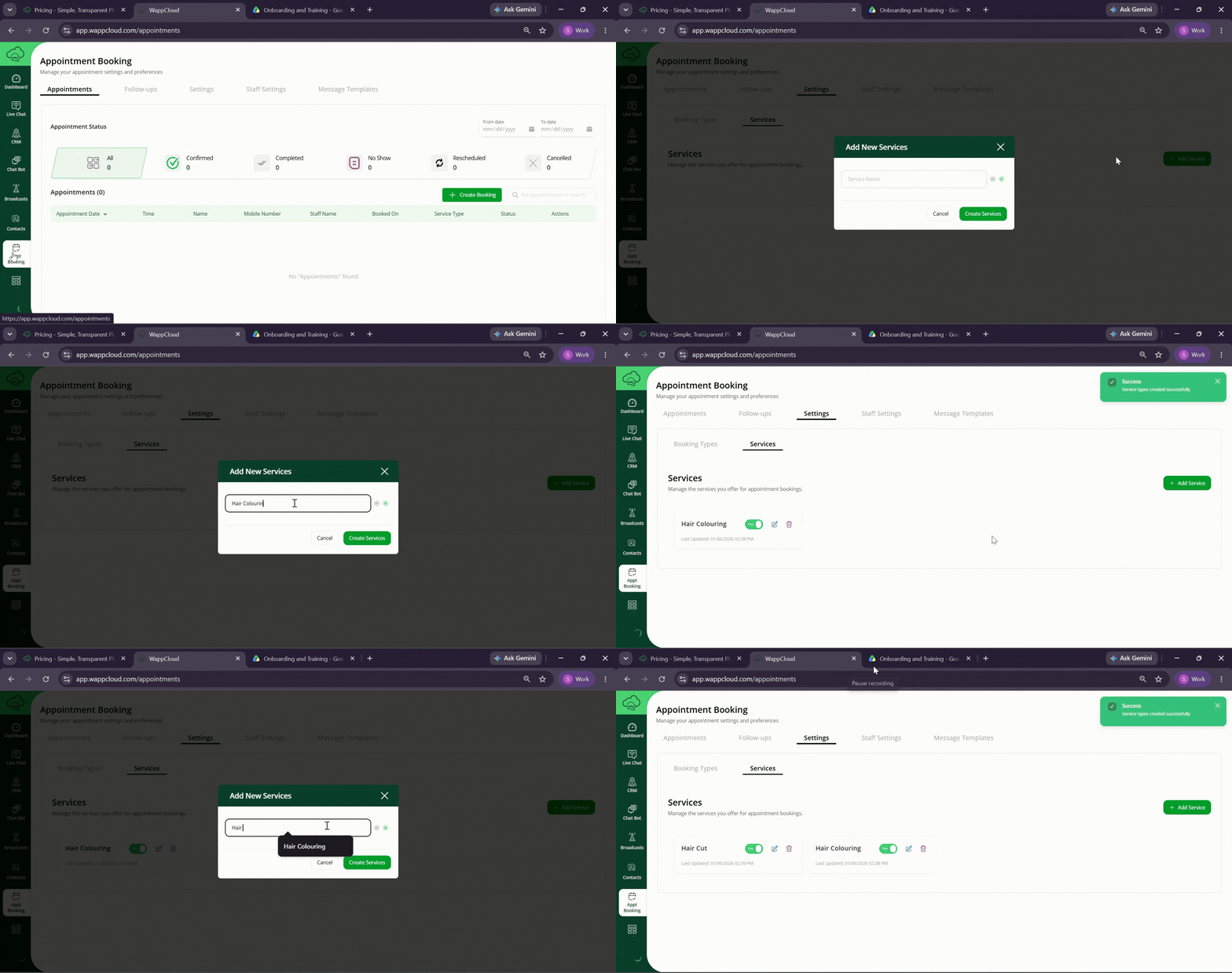
Steps to Configure Services
- Navigate to Appointment Booking > Settings > Services.
- Click Add Service.
- Enter service details.
- Save the service.
Service Management Options
- Enable or disable services
- Edit service details
- Delete unused services