Open External API Settings
Follow the steps below to navigate to the External API management page.
-
Log in to WappCloud.
-
Click More from the left navigation menu.
-
Click API.
-
Select External API.
Generate Your API Key
What is an API Key?
The API Key uniquely identifies your application when making API requests. It must be included in the x-api-key header of every request.
How to Generate an API Key
1. Access API Key Settings
-
Log in to your account and navigate to the Settings or API section.
-
Look for the API Keys or Generate API Key option.
2. Generate Your API Key
-
Click on the Generate API Key button.
-
A new API key will be displayed on your screen.
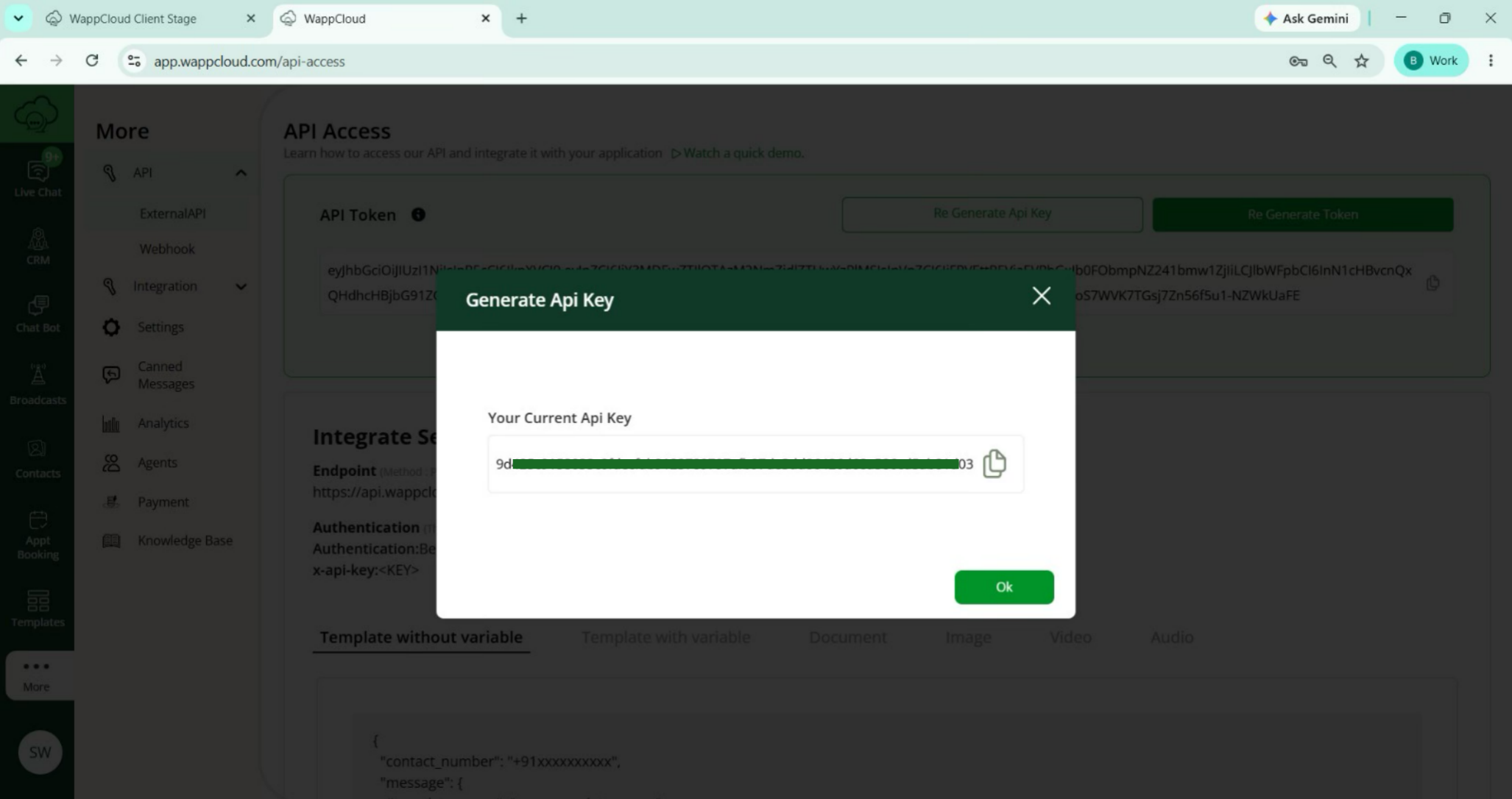
Note: This is the only time the full API key will be shown.
3. Save Your API Key Securely
-
Copy the API key immediately.
-
Store it in a secure password manager or a safe location.
-
You will need to use this key in the
x-api-keyheader for all your API requests.
4. Regenerating Your API Key
If you need to generate a new API key:
-
Click the Regenerate Key button.
-
The old key will be invalidated immediately.
-
You must update all places where you were using the old key with the new one.
Important Notes
-
One-time Display: The API key is shown only once during creation/regeneration.
-
API Keys should never be shared publicly.
-
API Keys should not be stored in frontend applications.
-
Regenerate immediately if compromised.
Generate an Access Token
What is an Access Token?
The Access Token is used to authenticate API requests. It must be included in the Authorization header of all your API requests as a Bearer token.
How to Generate an Access Token
1. Log in to the application
-
Open your web browser and navigate to the application login page.
-
Enter your credentials to log in to your account.
2. Access API Settings
-
After logging in, locate and click on the More menu (typically represented by three dots or lines) in the navigation bar.
-
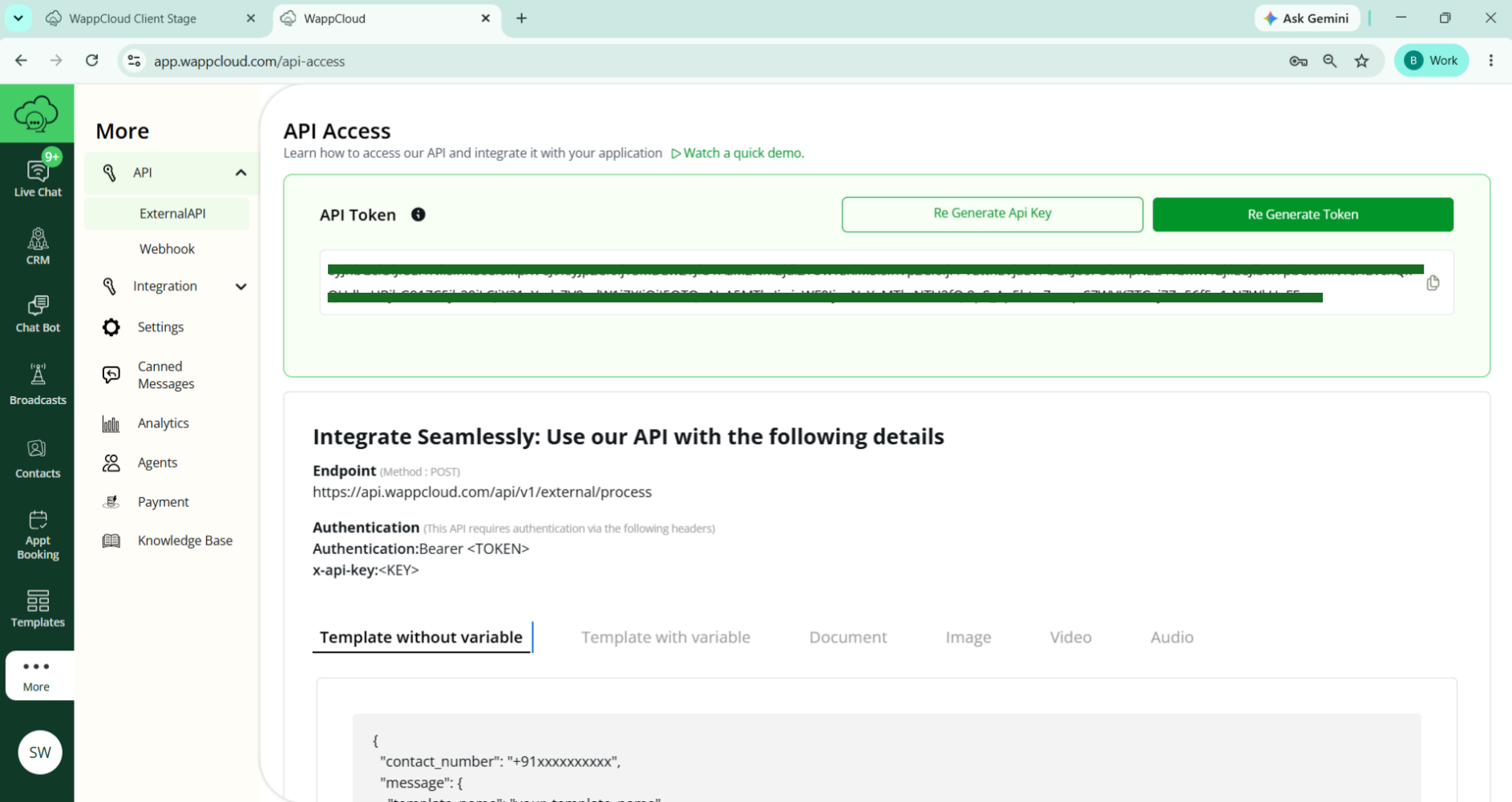
From the dropdown menu, select API Access to open the API settings page.
3. Copy Your Access Token
-
On the API Access page, you will find your access token displayed in a designated field.
-
Click the Copy button next to the token to copy it to your clipboard.
4. Regenerating Your Token
If you need to generate a new token:
-
Click the Regenerate Token button.
-
A confirmation dialog will appear — confirm to proceed.
-
The old token will be invalidated immediately after regeneration.
-
Copy the new token as it will only be shown once.
5. Using Your Token
- Your access token should be included in the
Authorizationheader of your API requests as a Bearer token.
Example:
Authorization: Bearer your_access_token_hereSecurity Note: Keep your access token confidential and never share it publicly or commit it to version control.
Copy the API Base URL
The Base URL is the root URL used for all External API requests.
Steps:
-
Locate the Base URL section on the External API page.
-
Copy the URL.
-
Use it when building API requests.
Base URL:
https://client-api.wappcloud.com/api/v1Authentication Guide
Every API request must include both your API Key and your Access Token (Bearer Token) in the request headers.
Required Headers
| Header | Description |
|---|---|
| x-api-key | (Required) Your API Key for authentication. |
| Authorization | (Required) Bearer token for authentication. Format: Bearer <your_token> |
Header Format
x-api-key: your_api_key_here
Authorization: Bearer your_access_token_here
Note: Your access token should be included in the Authorization header of your API requests as a Bearer token. Keep your access token confidential and never share it publicly or commit it to version control.
Configure Authentication in Postman
Many users test APIs with Postman before writing code. Follow these steps to set up authentication in Postman.
1. Open Postman
-
Launch the Postman application on your system.
-
If you don’t have it yet, download it from Postman Website.
2. Create a New Request
-
Click the + New Tab or New Request button.
-
A new request window will open.
-
In the request URL bar, enter your API endpoint.
3. Add Authorization (Bearer Token)
-
Go to the Authorization tab.
-
From the Type dropdown, select Bearer Token.
-
In the Token field, paste your access token.
4. Add API Key Header
-
Go to the Headers tab.
-
Add the following key-value pair:
| Key | Value |
|---|---|
| x-api-key | your_api_key_here |
5. Send Request
-
Once the Bearer Token and x-api-key are added, click Send.
-
The API will now authenticate your request and return the response.