Message Templates
Templates in WappCloud allow users to create structured and reusable message formats for different types of communications, such as marketing, customer support, and transactional messages. This ensures consistency, efficiency, and compliance with messaging regulations.
Template Categories in WappCloud
Marketing Templates
Marketing Templates are used for promotional and engagement-related communication. These templates help businesses promote products, offers, services, events, or announcements to customers.
Common Use Cases
- Promotional offers
- Discount campaigns
- Product launches
- Festival wishes
- Customer engagement messages
Example
🎉 Special Offer! Get 20% off on all products. Use code SAVE20 at checkout. Limited time only! 🔥Utility Templates
Utility Templates are used for important customer-related updates and notifications. These messages are usually transactional or informational.
Common Use Cases
- Order confirmations
- Payment updates
- Appointment reminders
- Account notifications
Example
Your OTP is 123456. Do not share this code with anyone. It expires in 10 minutes.Creating a WhatsApp Template
Follow the steps below to create a WhatsApp template from the dashboard.
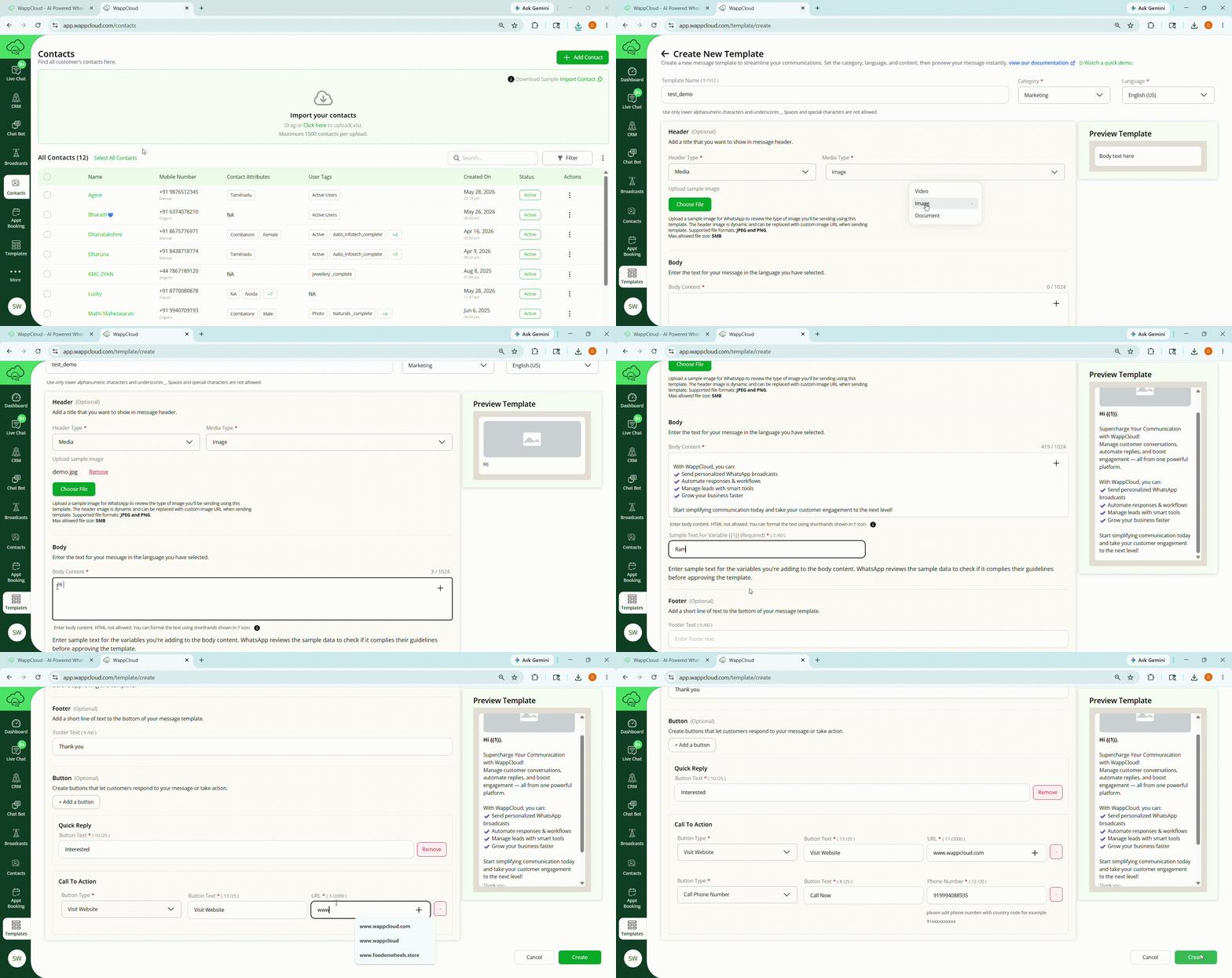
Step 1: Navigate to the Templates section from the dashboard menu.
Step 2: Click on Create New Template.
Step 3: Fill in Template Details
(i). Template Name
Enter a unique template name.
- Use only lowercase letters (a-z), numbers (0-9), and underscores (_).
- Spaces and special characters are not allowed.
Example:
order_confirmation(ii). Template Category
Select the category based on the type of message you are creating.
Available categories:
- Marketing – Promotional messages, offers, campaigns, etc.
- Utility – Transactional or service-related messages such as order updates and reminders.
(iii). Header
The Header appears at the top of the message and can be used as a title or introduction.
Select the header type from the dropdown menu.
Available header types:
- Text
- Media (image, video and documents)
(iv). Body
The Body contains the main content of the message.
Enter the message you want to send to customers. You can use placeholders (variables) to personalize the message.
Examples of placeholder:
{{1}}
Example Message:
Hello {{1}},
Your order # {{2}} has been confirmed successfully.
(v). Footer (Optional)
The Footer is a short line of text displayed at the bottom of the message.
Example:
Thank you for choosing us(vi). Buttons (Optional)
Buttons allow customers to respond or take action directly from the message.
Types of Buttons
1. Quick Reply — Allows users to choose from predefined response options.
Examples:
- Know More
- Shop Now
2. Call-to-Action — Redirects users to a website or phone number.
Examples:
- Visit Website
- Call Now
Step 4: Preview the Template
- Preview the message.
- Verify the formatting, placeholders, and button configuration before submission.
Step 5: Create the Template
- Click on Create.
The template status will remain Pending until it is reviewed and approved by Meta.
Step 6: Use the Template
Once the template is approved, it can be used in broadcasts and customer communication campaigns.
Creating a Carousel Template
A Carousel Template lets you send multiple cards in a single message, where each card can have its own image or video, its own text, and its own buttons. Customers can swipe through the cards on WhatsApp. Carousel templates are only available for the Marketing category.
Step 1: Navigate to the Templates section from the dashboard menu and click Create New Template.
Step 2: Enter the Template Name and select Marketing as the Template Category.
Step 3: Under Template Type, choose Carousel (shown with a “New” badge). This option only appears when the category is set to Marketing.
- Selecting Carousel hides the regular Header and Footer sections for the main message — a warning banner in the form reminds you that these are not used for carousel templates.
Step 4: Fill in the main Body text for the template, as described above.
Step 5: Build your carousel cards.
- Click Add Card to add a new card. You can add a minimum of 2 and a maximum of 10 cards.
- The number of cards you have added is shown next to the button (for example, “3/10”).
For each card, fill in:
(i). Card Header
- Select the media type: Image or Video.
- Click Choose File to upload the media for that card.
- Validation you may see: an error if the file format isn’t supported for the selected media type, or “File size exceeds the limit.” if the file is too large.
- You can remove an uploaded file using the Remove link and upload a different one.
(ii). Card Body
- Enter the text for that card (up to 160 characters).
- Note: if you add body text to one card, all cards in the carousel must have body text — you’ll see a validation message (“If any card has body text, all cards must have body text”) if this is inconsistent.
(iii). Card Buttons (Optional)
- Click + Add button to add a button to the card. Each card can have up to 2 buttons.
- Button types available: Quick Reply, Website (Call-to-Action), and Phone Number (Call-to-Action).
- Button text can be up to 25 characters.
- For a Website button, you can enter a URL (up to 2000 characters) and optionally use one dynamic variable in the URL (only 1 sample variable is supported per carousel button URL).
- For a Phone Number button, enter the number (up to 20 characters).
- Note: every card in the carousel must have the same number of buttons — you’ll see a validation message (“All cards must have the same number of buttons”) if the counts don’t match across cards.
Step 6: Preview and create the template as described above. Once approved by Meta, the carousel template can be used the same way as other templates in broadcasts and customer communication.
Template Guidelines
Approval Criteria for Templates
✅ Use clear, simple, and concise language that is easy to understand.
✅ Ensure messages are relevant, useful, and free from spam.
✅ Avoid sensitive or restricted topics such as religion, politics, financial solicitations, or misleading claims.
✅ Maintain proper spelling, punctuation, grammar, and consistent formatting throughout the template.
🚨 Templates that do not comply with Meta policies may be rejected and require modification before resubmission.