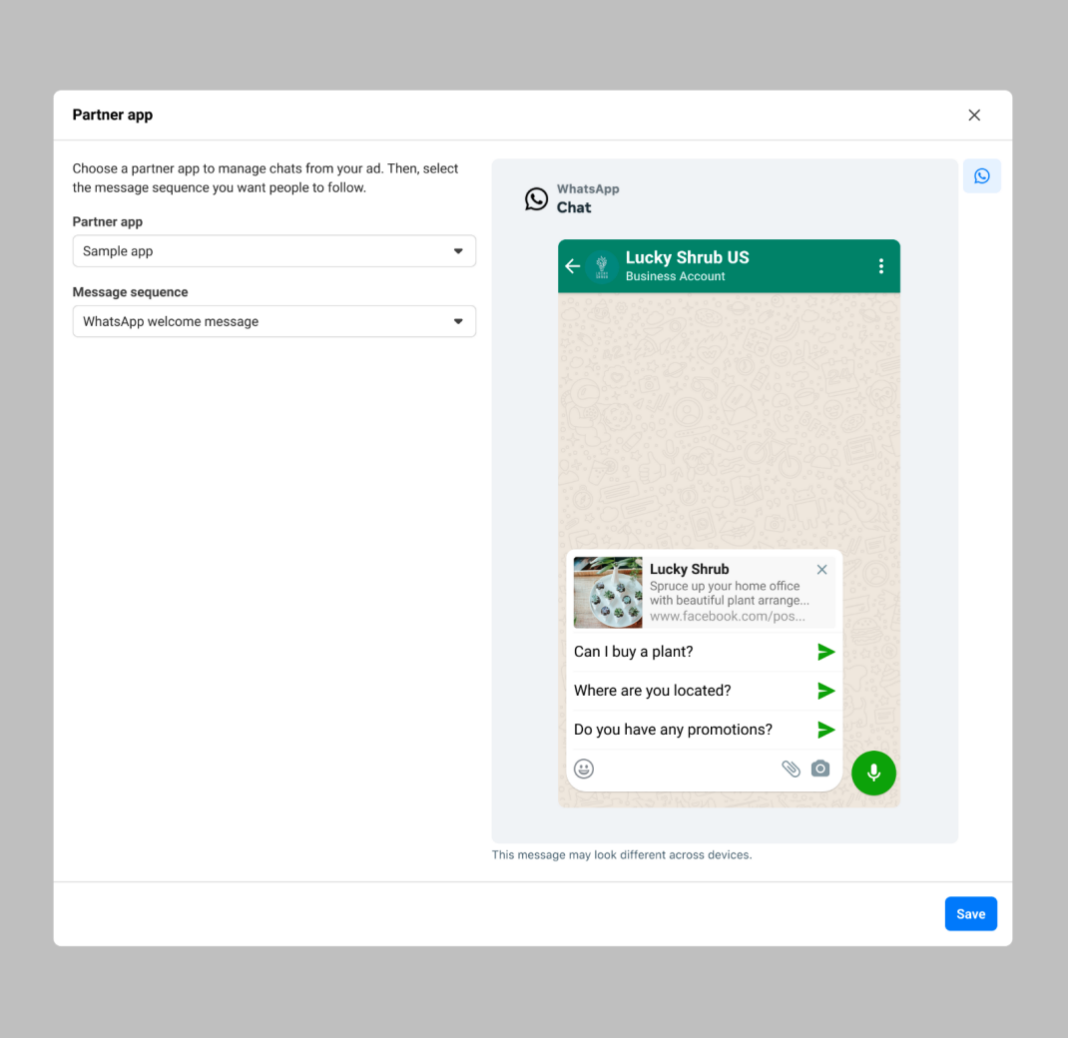
Ad Welcome Message Sequence
An Ad Welcome Message Sequence is the first automated message customers see after clicking your Click-to-WhatsApp Ad. Instead of opening an empty chat, they receive a welcome message, suggested replies, and FAQs that help them start the conversation quickly.
How It Works
When a customer clicks your ad, WhatsApp opens and displays the welcome message you’ve configured. Customers can tap a suggested reply or FAQ to instantly begin the conversation, making the experience simple and seamless.
Benefits
-
Instant Customer Engagement — Welcome customers the moment they open WhatsApp, creating a faster and more engaging first interaction.
-
Faster Responses — Answer common questions immediately with FAQs, reducing the need for manual replies.
-
Better Customer Experience — Guide customers with suggested replies so they know exactly how to start the conversation.
-
Higher Lead Conversion — Reduce customer drop-offs by making it quick and easy for users to express their interest.
-
Reduced Support Workload — Automate repetitive queries, allowing your team to focus on more important customer conversations.
-
Consistent Communication — Every customer receives the same professional welcome message and guidance, ensuring a consistent brand experience.
Steps to configure
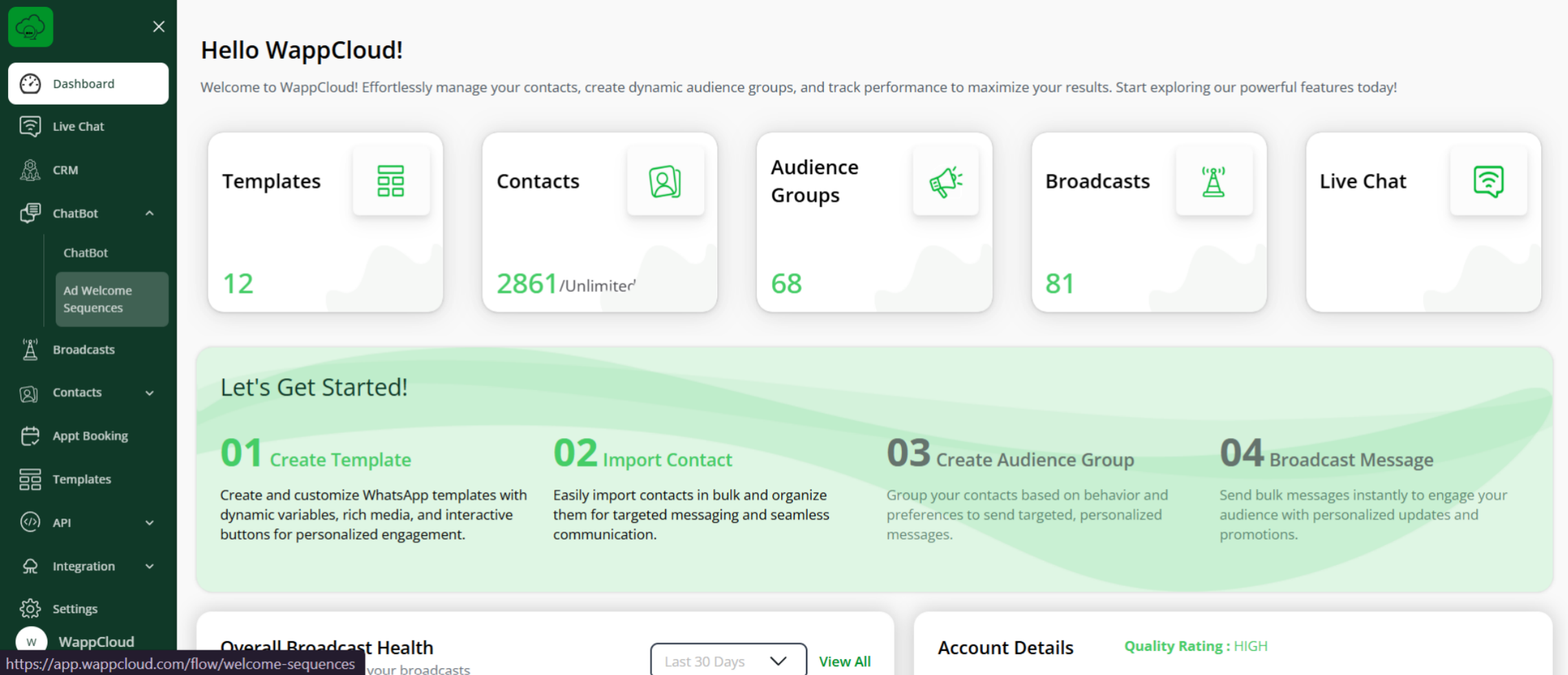
Step 1: From your WappCloud login, navigate to the Chatbot section and click on Ad Welcome Sequence.
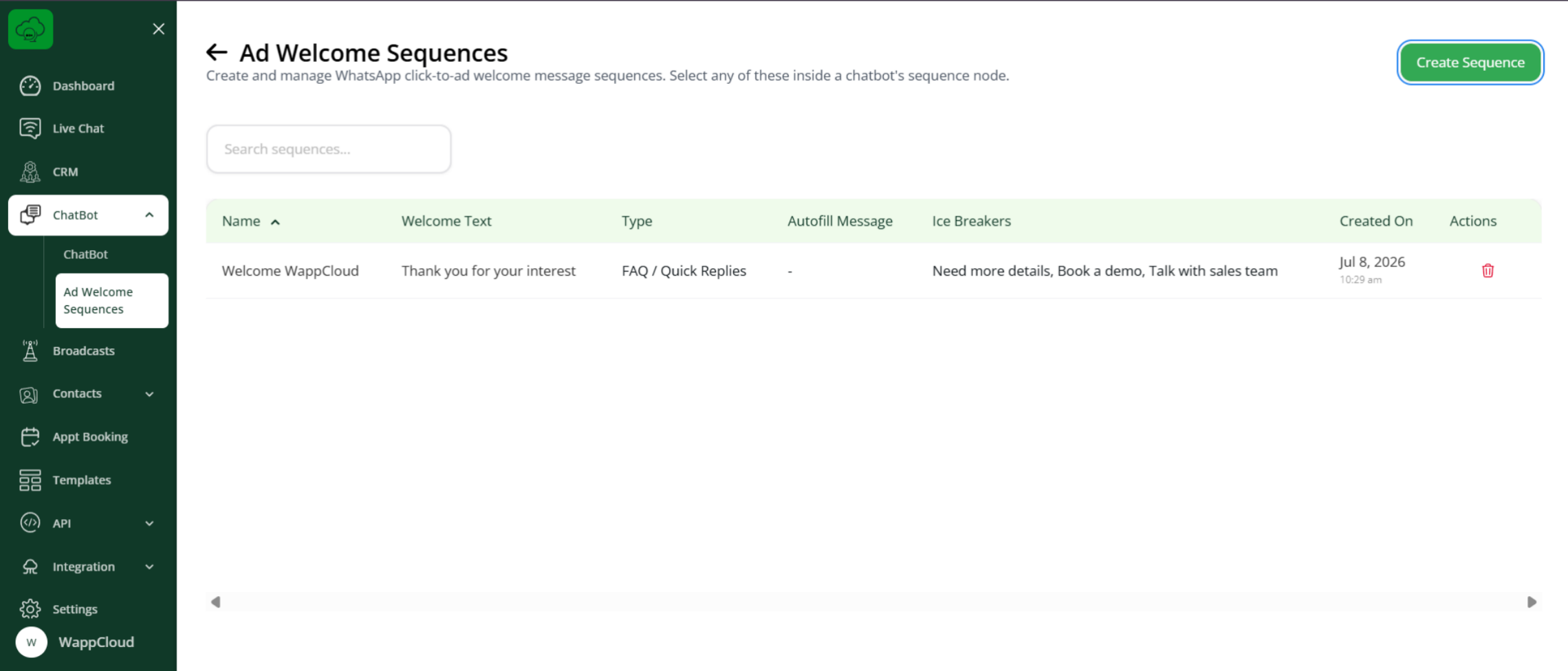
Step 2: Click the Create Sequence option to set up the sequence.
Step 3: Select either the Prefilled Message or FAQ/Quick Replies option.
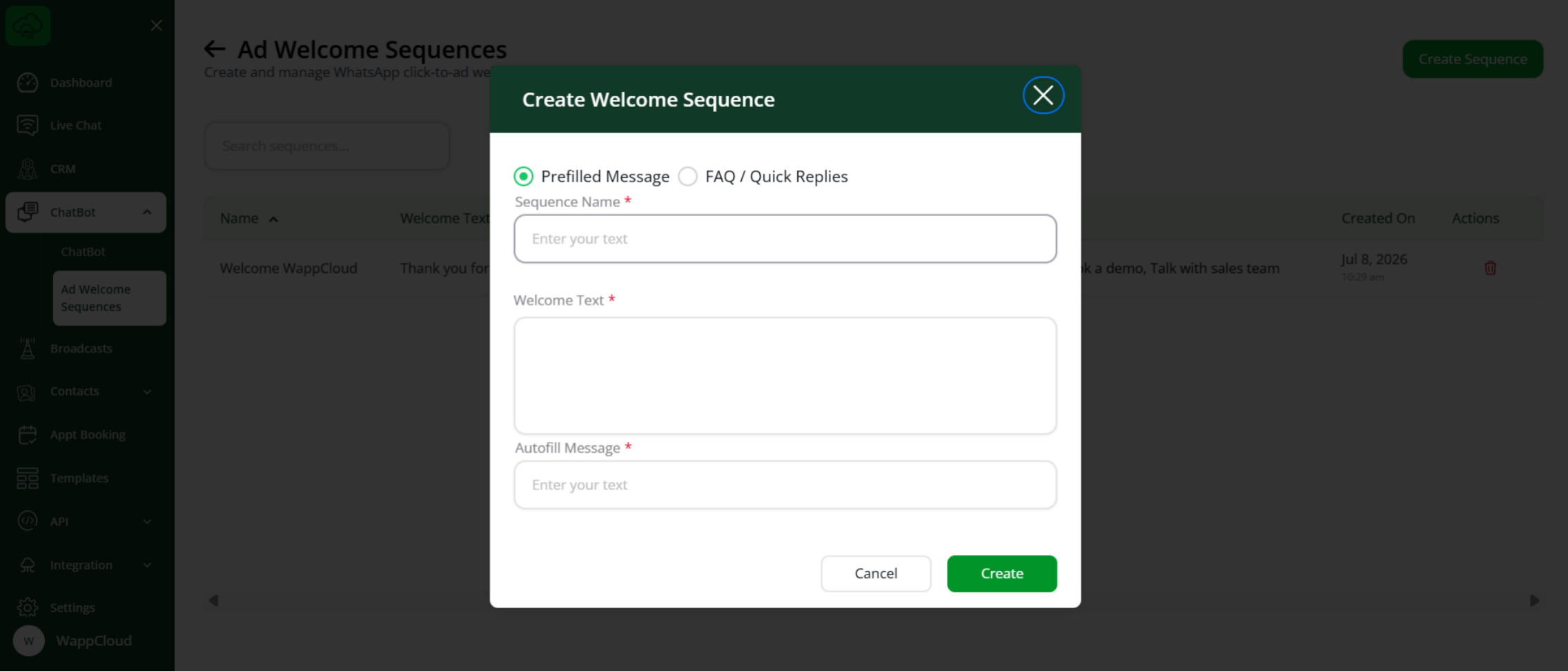
1. Prefilled Message
A Prefilled Message lets customers start a conversation with a ready-made message. When they click your Click-to-WhatsApp Ad, the message is already filled in, and they can send it with a single tap.
Benefit: Makes it faster and easier for customers to start a conversation.
Enter the details:
a. Sequence Name: Product Inquiry
b. Welcome Text: 👋 Hi! Welcome to WappCloud. How can we help you today?
c. Autofill Message: Hi, I’d like to know more about your WhatsApp Business API solutions.
Then click Create.
2. FAQ / Quick Replies
FAQ/Quick Replies display predefined questions or options that customers can tap to begin the conversation or find the information they need.
Benefit: Guides customers to the right topic and reduces common support queries.
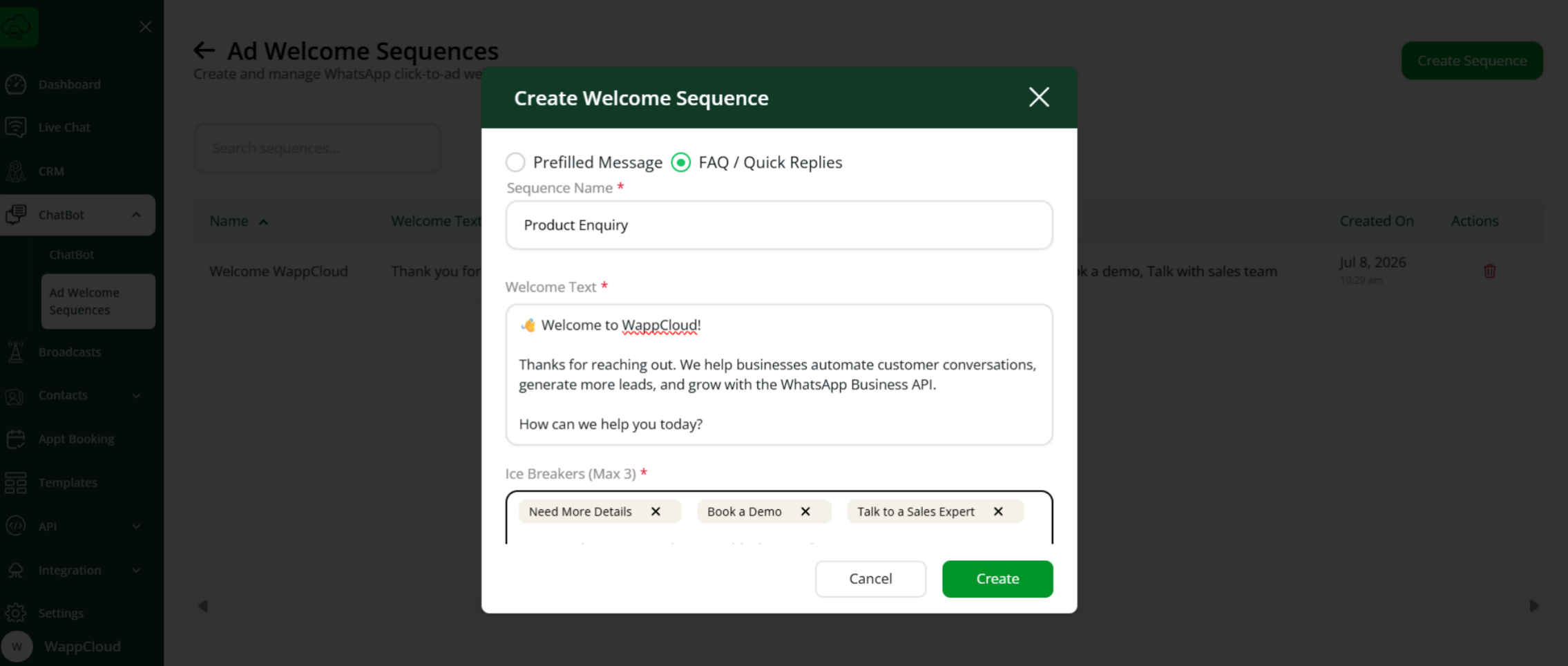
Enter the details:
a. Sequence Name
b. Welcome Text
c. Ice Breakers — Add simple buttons that customers can tap to start the conversation without typing.
Then click Create.
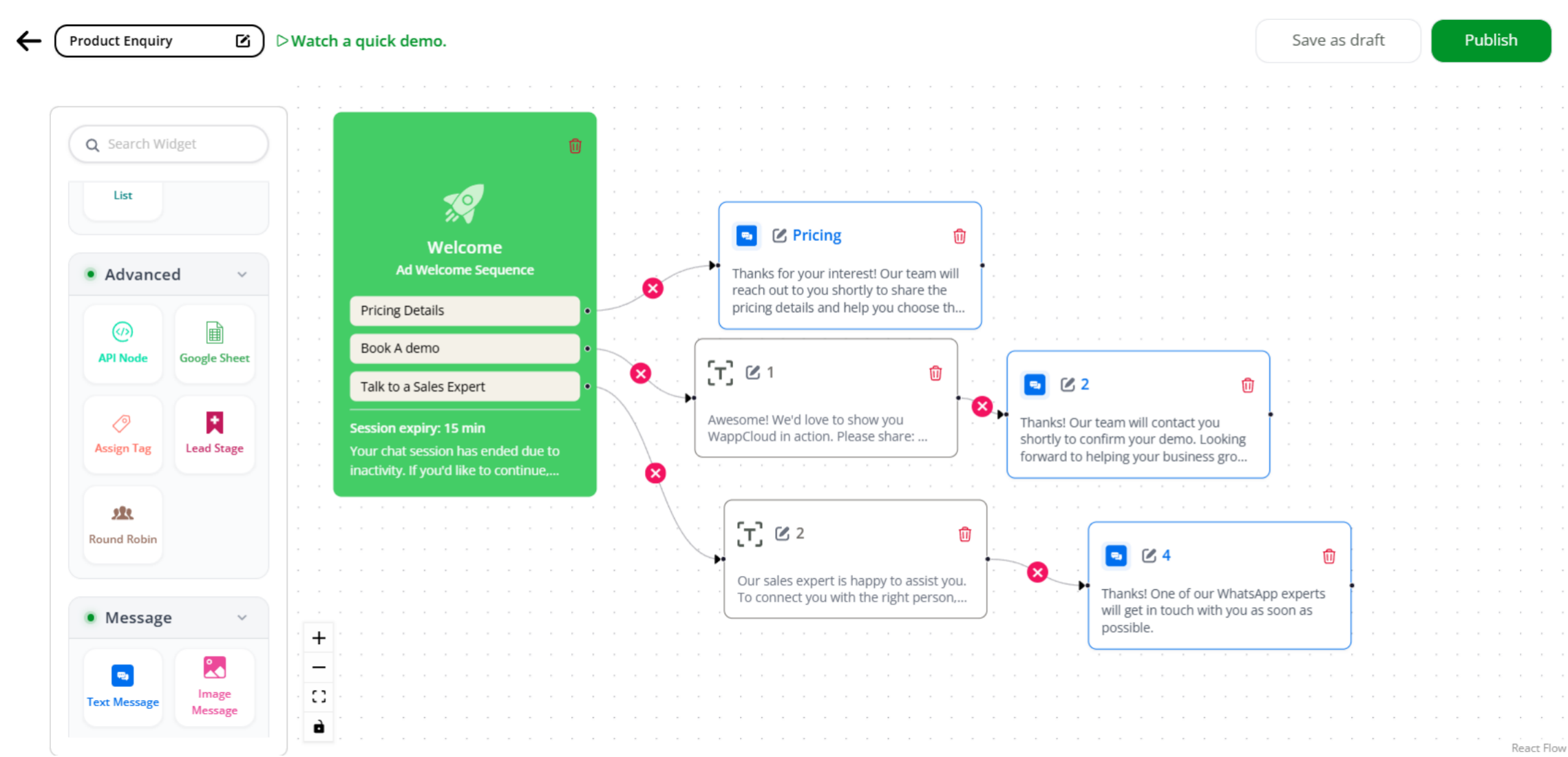
Step 4: After configuring the Welcome Message Sequence, create a chatbot flow for each Ice Breaker. This ensures customers are taken to the correct conversation based on the option they select.
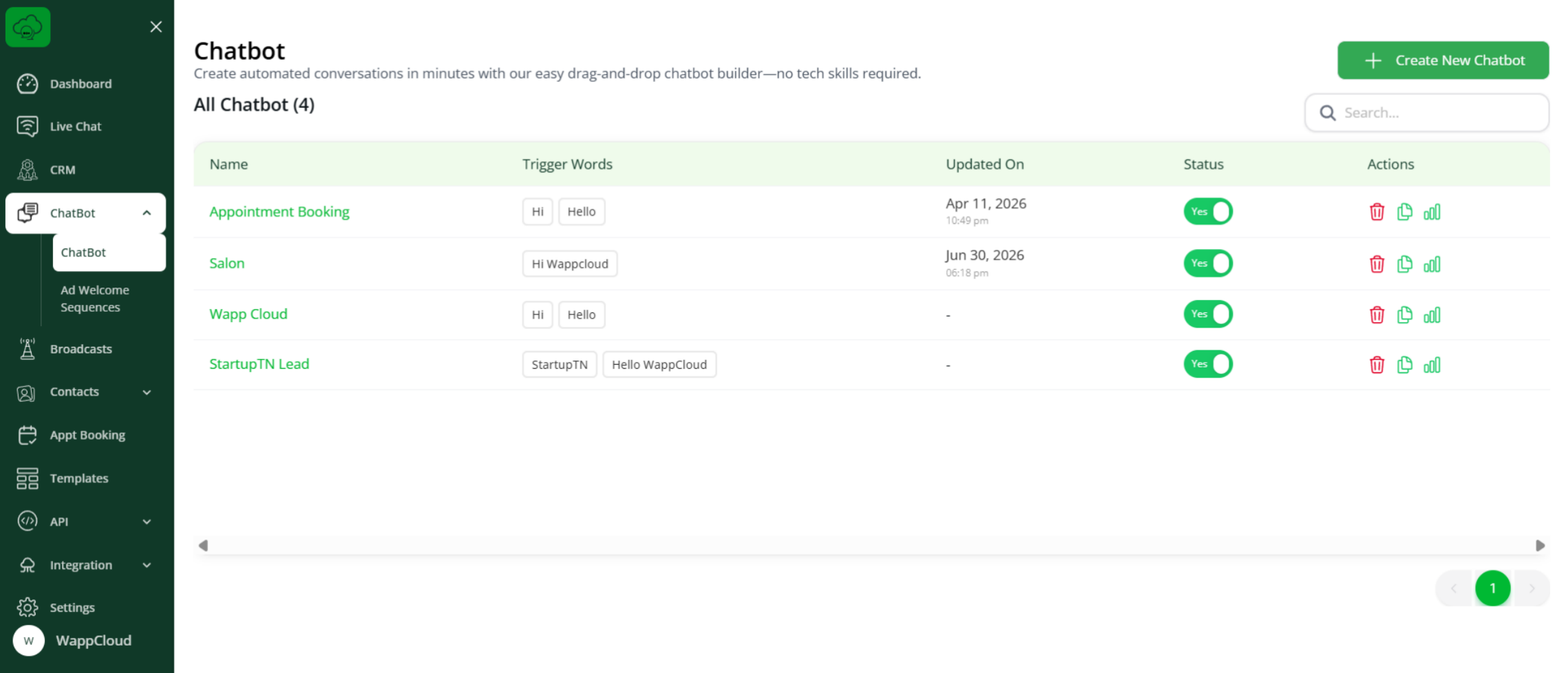
Navigate to the Chatbot section and click Create New Chatbot.
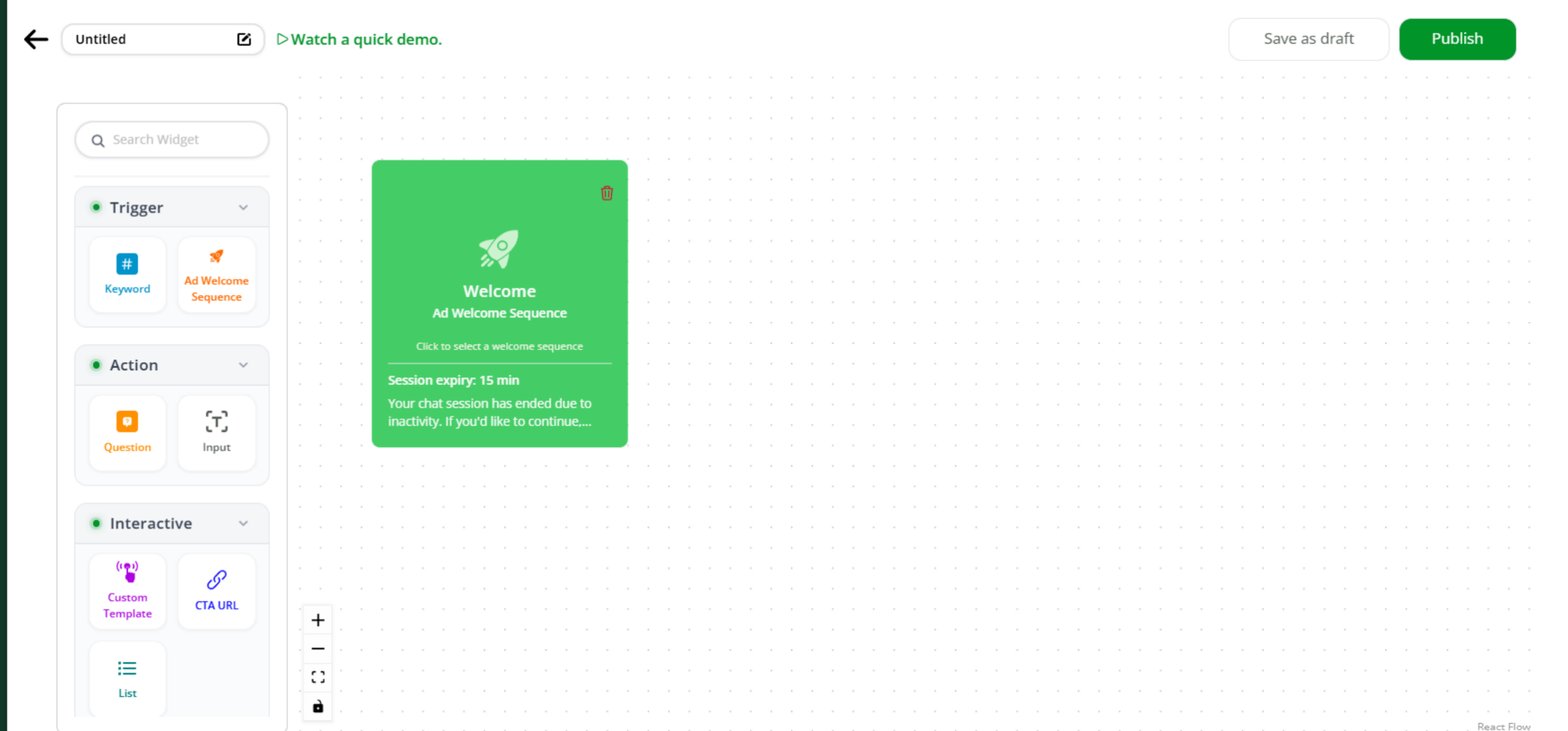
Step 5: Select the Ad Welcome Sequence option from the widgets.
Step 6: Select the Welcome Sequence from the dropdown.
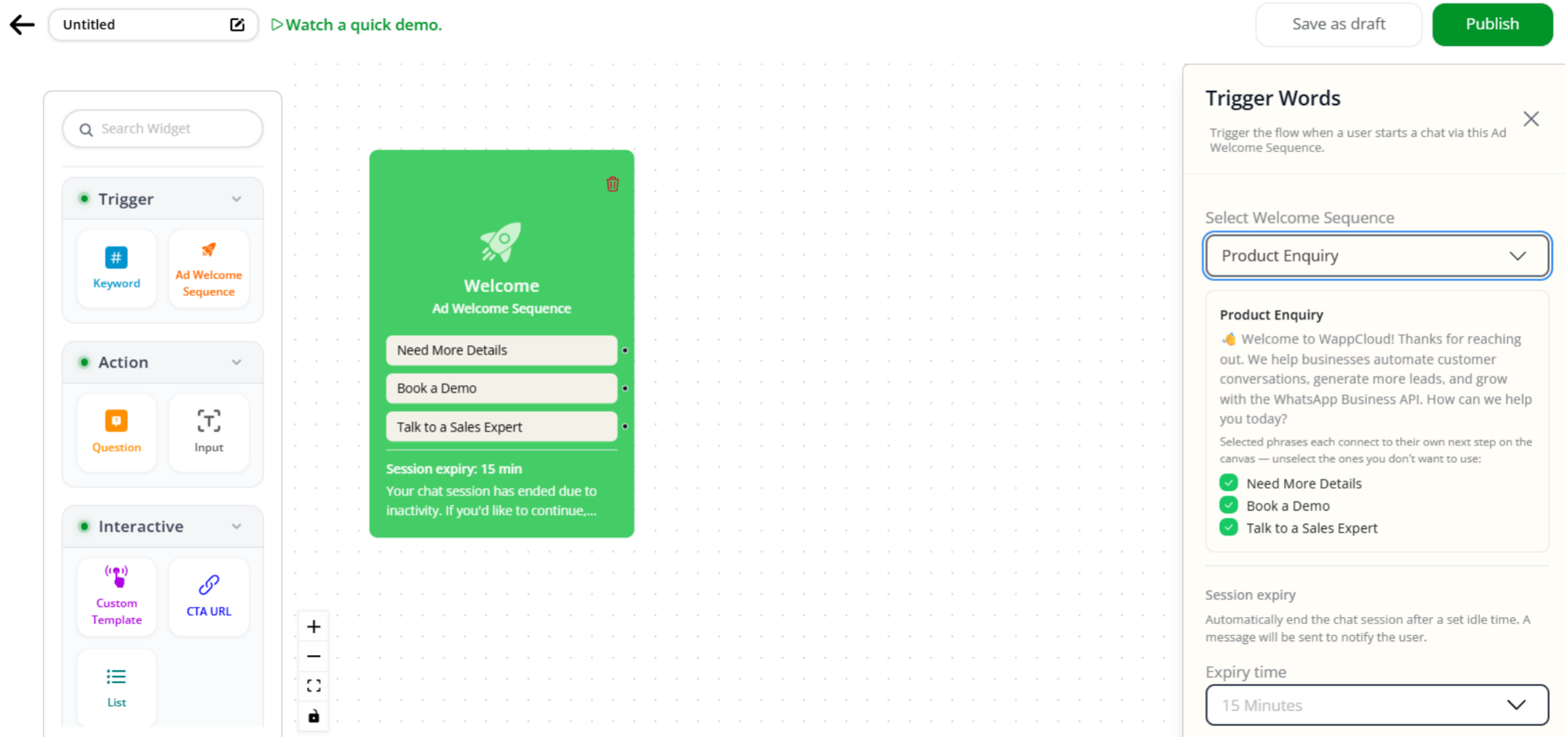
Step 7: Create a chatbot flow for each Ice Breaker/Quick Reply and publish.
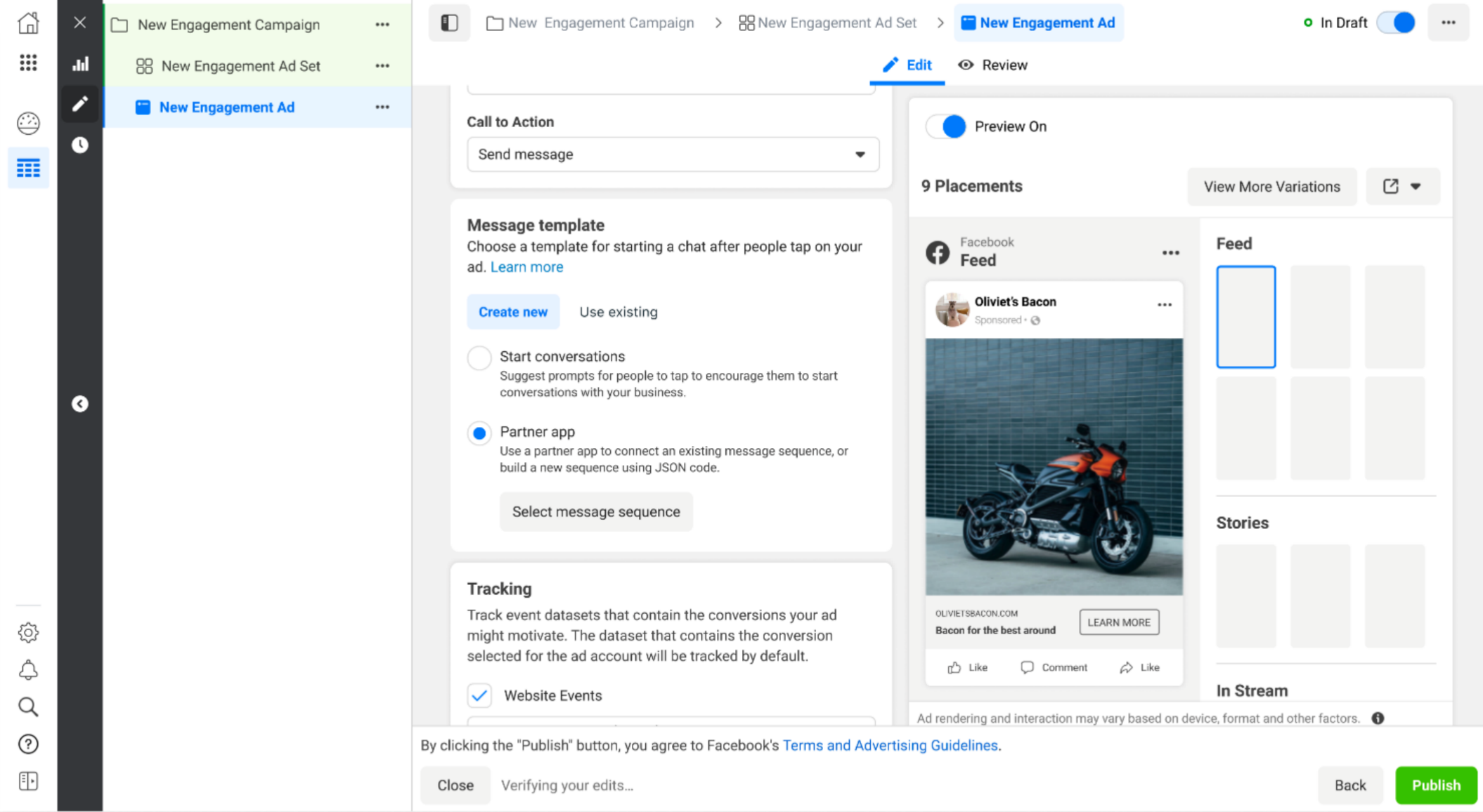
Step 8: To use this sequence in your Meta ad, open Meta Ads Manager, connect your WhatsApp account in the Ad Set section, and then go to the Ad Creative section.
Step 9: In the Message Template section of the Ad Creative, select Partner App.
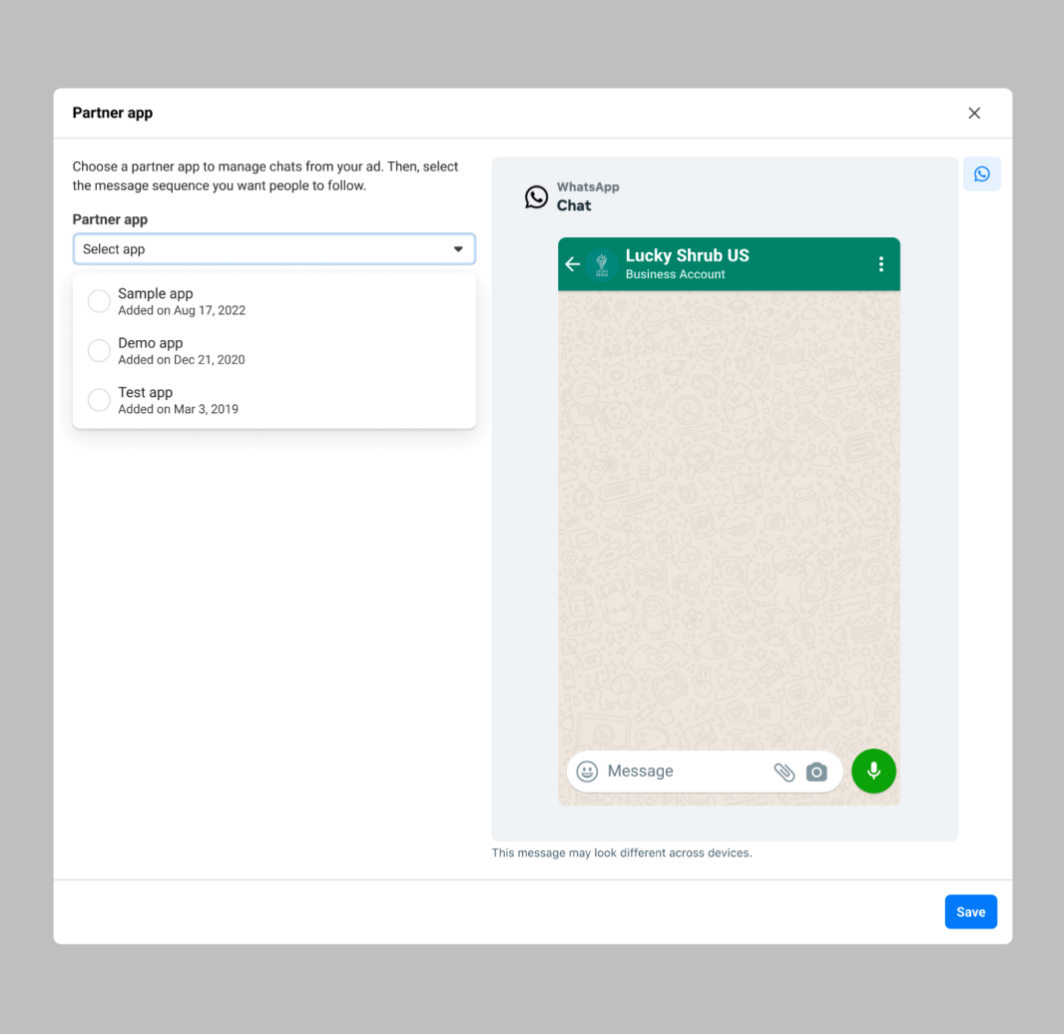
Step 10: Click the Partner App dropdown and select the appropriate messaging partner app.
Step 11: Under Message Sequence, select the Welcome Message Sequence that you submitted via WappCloud.
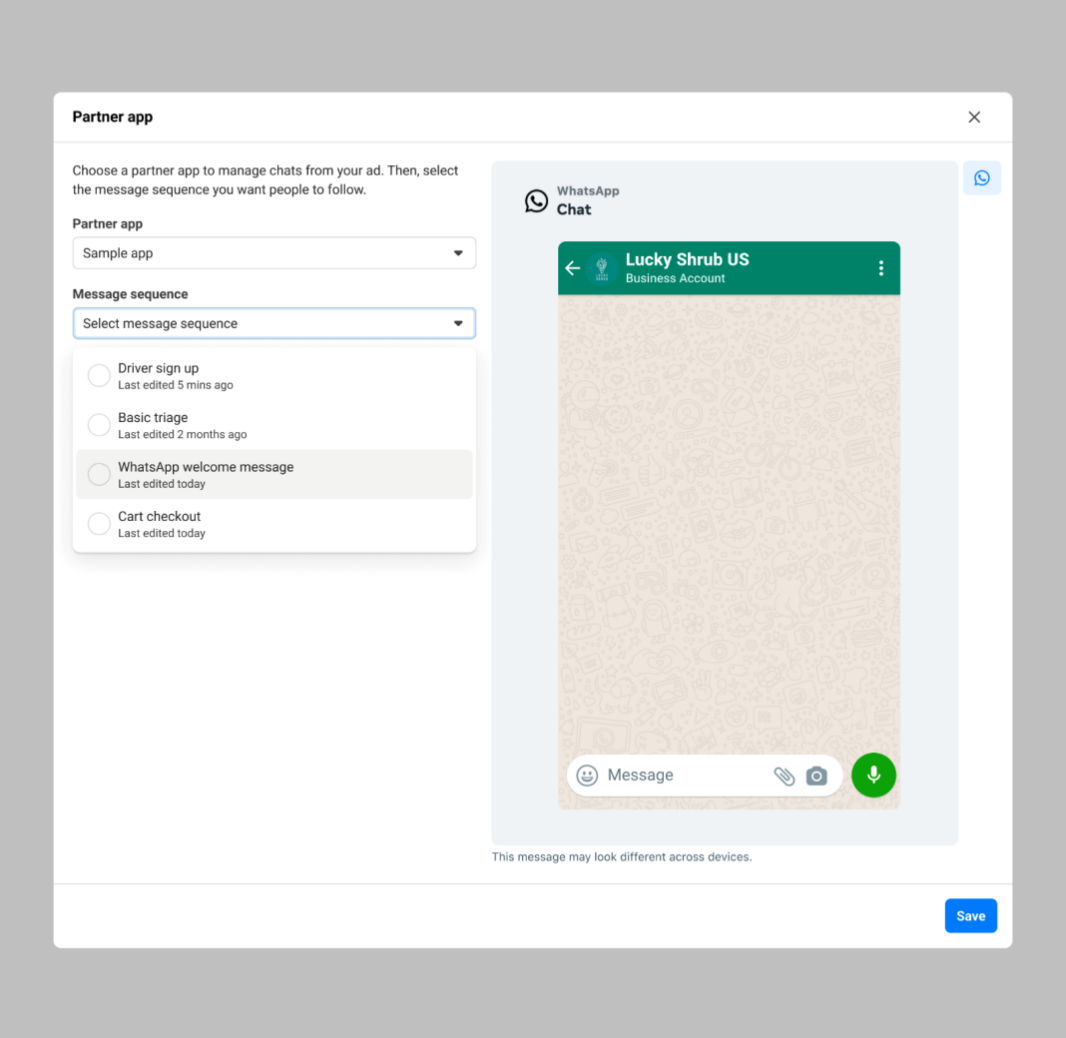
Step 12: Preview your Message Sequence and click Save.